


Poor audio quality can ruin an otherwise excellent recording. You might have recorded an important interview, created a podcast episode, captured a business meeting, or filmed a video, only to discover that background noise makes the speaker difficult to understand. Perhaps there is an annoying fan running nearby, traffic passing outside, people talking in the background, or an unpleasant echo coming from the room.
Fortunately, fixing these problems no longer requires expensive recording equipment or advanced audio-editing skills. Artificial intelligence (AI) audio enhancement tools can automatically identify unwanted sounds, reduce background noise, improve speech clarity, and make ordinary recordings sound significantly more professional.
In 2026, several accessible AI-powered platforms offer one-click audio cleanup, voice isolation, echo reduction, and automatic sound optimization. Some work directly through a web browser, while others integrate with video editors, podcast production software, and communication applications.
The best part? You don’t need to be an audio engineer to use them.
In this guide, we’ll explore simple AI tools for cleaning up noisy audio recordings, compare their capabilities, explain how to use them, and help you choose the right solution for podcasts, interviews, online meetings, videos, and everyday recordings.
1. Understanding AI Audio Cleanup
Imagine recording an important conversation in a busy coffee shop. Your microphone captures the speaker’s voice, but it also records conversations from nearby tables, coffee machines, background music, and people moving around. Traditionally, removing these unwanted sounds required specialized software, careful adjustments, and considerable audio-editing experience.
AI audio cleanup makes this process much easier. Instead of manually identifying every unwanted sound, intelligent software analyzes the recording and attempts to distinguish the important audio from distracting background elements. Depending on the tool, it can suppress environmental noise, reduce room echo, isolate speech, balance volume, and improve the overall listening experience.
This technology is particularly useful for content creators, journalists, students, remote employees, business professionals, and pod casters. For example, a YouTube creator can improve voice recordings captured using an ordinary microphone, while a student can make recorded lectures easier to understand. Businesses can also use AI enhancement to improve interviews and recorded discussions without spending hours editing individual audio tracks.
However, AI audio enhancement isn’t a magical solution that repairs every recording perfectly. Extremely distorted audio, clipped speech, overlapping conversations, and missing sound information can remain difficult to fix. The goal is to improve the recording while preserving the original speaker’s natural voice.
Common Audio Problems AI Can Fix
Before choosing an AI audio cleaner, it’s helpful to understand which recording problems these tools are designed to address. Not all unwanted sounds behave in the same way, and different enhancement technologies are better suited to different situations.
Background noise is one of the most common problems. It includes air-conditioning systems, computer fans, traffic, keyboard typing, electrical interference, and other environmental sounds. AI noise reduction can identify many of these distractions and reduce their presence without requiring you to edit every second of the recording.
Background voices create another challenge. When several people speak simultaneously, traditional noise reduction may struggle to separate the intended speaker from other conversations. AI-powered voice isolation can sometimes distinguish the primary speaker and suppress competing voices, although results depend heavily on recording quality.
Room echo and reverberation can also make speech sound distant or unclear. This frequently happens when recording in empty rooms, large offices, or spaces with hard floors and walls. Some AI enhancement platforms can reduce these acoustic effects and make speech sound closer and more focused.
Other common problems include inconsistent volume, microphone hiss, unwanted mouth sounds, and distracting pauses. Certain tools can handle several of these issues in one workflow, while specialized applications focus on only one or two.
How AI Noise Reduction Works
AI audio cleanup generally relies on machine-learning models trained to recognize patterns in speech, music, and environmental sounds. These systems analyze audio characteristics such as frequency, timing, pitch, and spectral patterns to estimate which sounds should remain and which should be reduced.
Think of it like separating ingredients in a mixed bowl of food. The recording contains multiple sound sources, but the AI attempts to identify the particular ingredient you want to keep. For spoken recordings, that usually means preserving the human voice while reducing traffic, fans, room noise, and other distractions.
Different platforms use different approaches. Traditional noise reduction estimates unwanted background noise and suppresses it, while more advanced speech-enhancement models can reconstruct or regenerate parts of the voice to improve clarity.
This distinction matters because aggressive AI processing can sometimes change the original sound. A voice might become unnaturally smooth, metallic, watery, or slightly robotic. That’s why professional audio editors often recommend comparing the original recording with the enhanced version rather than automatically accepting the strongest processing setting.
2. Best Simple AI Tools for Cleaning Noisy Audio
Choosing an audio cleanup application can feel confusing because dozens of platforms advertise similar features. However, some are designed for quick speech enhancement, others specialize in podcast production, and a few focus on real-time noise cancellation.
The following tools are worth considering in 2026 because they address different recording situations and offer relatively accessible workflows.
Adobe Podcast Enhance Speech

Adobe Podcast is one of the simplest options for improving recorded speech. Its Enhance Speech feature is designed to reduce unwanted background sounds and improve voice clarity through an easy browser-based workflow.
The platform is especially useful when you have recorded speech using a smartphone, laptop microphone, or basic recording equipment. Instead of manually adjusting equalizers, compressors, and noise gates, you upload your audio and allow the enhancement system to process it.
For example, imagine recording a tutorial in your home office while a ceiling fan creates constant background noise. Adobe Podcast can help reduce the distraction and make your voice easier to hear. It can also improve certain recordings affected by room echo and less-than-ideal microphone positioning.
One of its biggest advantages is accessibility. Beginners can use the service without installing a complicated desktop audio editor. The free offering has processing restrictions, including file-duration and daily usage limits, so it is important to check the current account limits before processing longer recordings.
Key features:
- AI-powered speech enhancement.
- Background-noise reduction.
- Improved voice clarity.
- Browser-based processing.
- Suitable for podcasts, interviews, and voice recordings.
Best for: Beginners, YouTube creators, students, and pod casters who want quick speech cleanup.
Limitation: It is primarily designed for speech rather than comprehensive music restoration or detailed multi track audio repair.
Descript Studio Sound

Descript combines audio enhancement with a broader editing workflow. Its Studio Sound feature helps improve spoken recordings by reducing unwanted background noise and enhancing voice quality.
What makes Descript interesting is that it connects audio editing with text-based editing. You can generate a transcript of your recording and edit the content by modifying the corresponding text. This is particularly useful for podcast creators, educators, marketers, and video producers who regularly work with spoken content.
Suppose you record a 30-minute interview and discover that the speaker’s microphone captures noticeable room noise. Instead of starting the entire editing process from scratch, you can apply Studio Sound and continue editing the conversation within the same environment.
Descript also supports broader production activities, including removing unnecessary sections, adjusting audio, and editing video. This makes it attractive to creators who want fewer separate applications in their production workflow.
However, Studio Sound should be used carefully. Strong processing may alter voice characteristics, particularly when the original recording already contains distortion or severe background interference. Start with a moderate enhancement level and listen to the result before exporting.
Key features:
- AI-powered Studio Sound enhancement.
- Transcript-based audio editing.
- Audio and video editing in one workspace.
- Speech transcription.
- Workflow tools for content creators.
Best for: Pod casters, video creators, interview editors, and people who want audio cleanup alongside editing.
Limitation: Some advanced capabilities and AI processing allowances depend on the subscription plan.
Auphonic
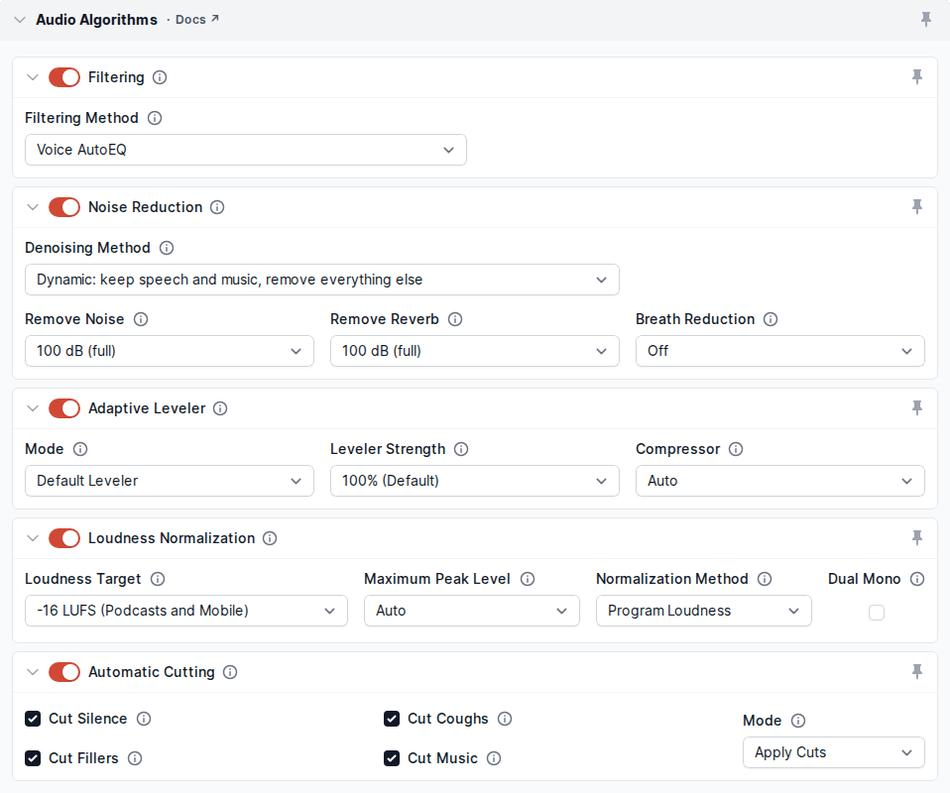
Auphonic is particularly useful for people who regularly produce podcasts, interviews, narrated videos, and other spoken-word content.
Unlike tools that focus mainly on removing background noise, Auphonic offers a broader audio post-production workflow. Its processing capabilities include noise reduction, automatic level adjustment, loudness normalization, and other improvements designed to make recordings more consistent.
Consider a podcast featuring two speakers recorded using different microphones. One person sounds significantly louder than the other, while the background noise varies between recording locations. Auphonic can help balance the audio and create a more consistent listening experience.
This is valuable because clean audio isn’t just about removing noise. Volume consistency also matters. Listeners shouldn’t need to constantly adjust their headphones whenever a speaker changes or a quieter section begins.
Auphonic offers a limited free processing allowance, which makes it possible to experiment before paying for regular production. According to its current comparison in November 2026, the platform provides two hours of free processing per month, subject to its account conditions. Audo+1
Key features:
- Automatic audio leveling.
- Noise and hum reduction.
- Loudness normalization.
- Podcast post-production.
- Automated processing workflows.
Best for: Pod casters, interview producers, educators, and regular audio publishers.
Limitation: It offers more production controls than a basic one-click cleaner, so beginners may need some time to understand its settings.
Krisp AI
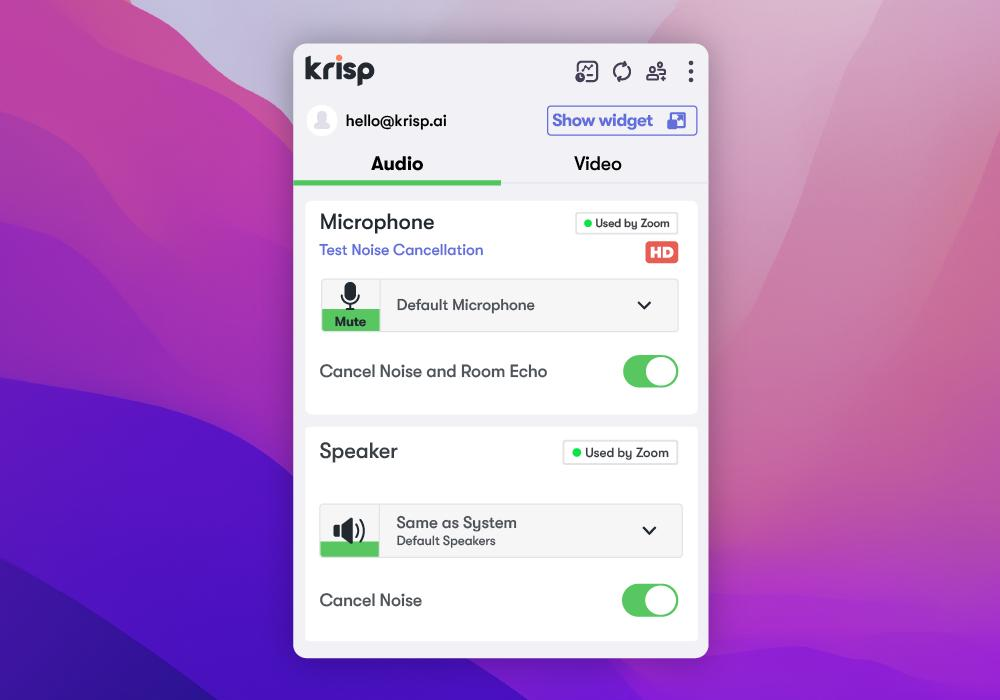
Krisp is designed for a slightly different purpose. Rather than focusing primarily on cleaning audio files after recording, it helps reduce unwanted sounds during live conversations.
This makes it useful for remote employees, online teachers, customer-support professionals, freelancers, and people who regularly attend virtual meetings.
Imagine joining a business meeting while construction work is happening outside your home. Your microphone may capture drilling, traffic, or conversations in the background. Krisp uses AI-powered noise cancellation to suppress many distracting sounds before they reach other meeting participants.
It can also help reduce unwanted background voices, depending on the situation and audio conditions. This makes conversations more comfortable and helps participants concentrate on the discussion instead of environmental distractions.
Krisp is particularly valuable because prevention can be easier than repair. If background noise is removed while recording or communicating, you may not need extensive post-production afterward.
However, Krisp is not intended to replace a complete audio restoration application. If you already have a noisy interview saved as an audio file, a dedicated post-production tool may be a better option.
Key features:
- Real-time AI noise cancellation.
- Microphone noise suppression.
- Support for online meeting workflows.
- Background voice reduction.
- Integration with communication applications.
Best for: Remote workers, online meetings, virtual classrooms, and live communication.
Limitation: Its primary strength is real-time noise cancellation rather than detailed repair of previously recorded audio.
ElevenLabs Voice Isolator
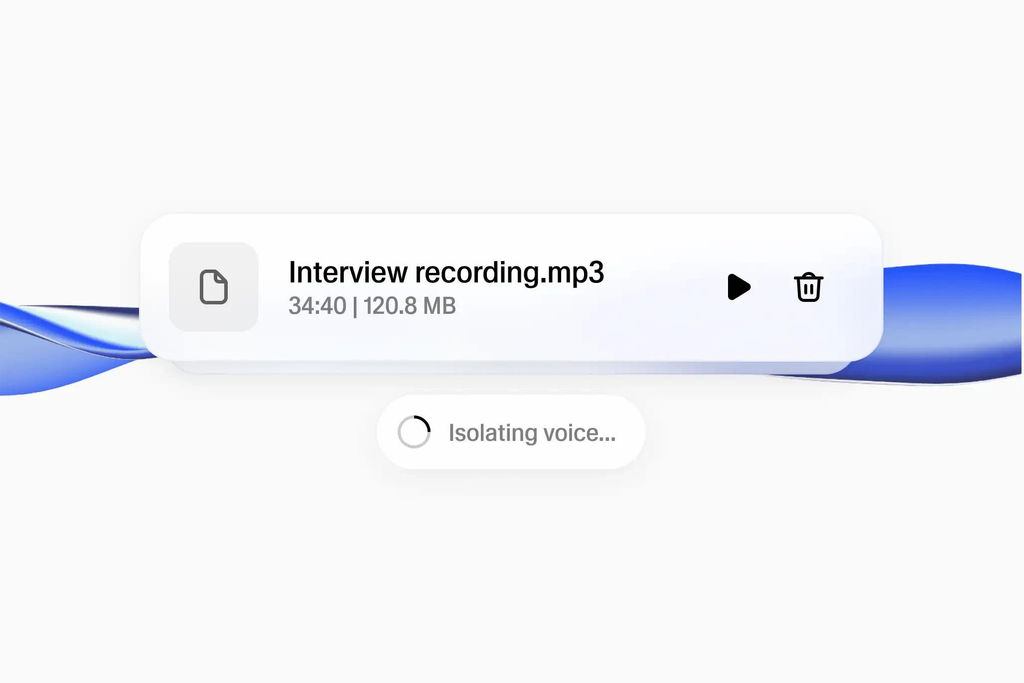
ElevenLabs is widely associated with AI voice technology, but its audio-processing capabilities also include voice isolation.
Voice isolation is useful when ordinary noise reduction isn’t sufficient. For example, you may have recorded someone speaking in a crowded public location where background conversations, music, and environmental sounds overlap with the main speaker.
Instead of simply reducing a particular frequency range, voice isolation attempts to distinguish the target speech from competing sound sources. This can make it useful for interviews, documentary footage, social media videos, and other recordings captured in unpredictable environments.
The technology is especially interesting for creators who work with dialogue recorded outside a controlled studio. A street interview, for instance, may contain traffic noise and conversations that traditional noise reduction cannot easily eliminate.
However, results depend on how clearly the original speaker is captured. If several voices overlap heavily, or if the main voice is extremely quiet, the software may produce artifacts or remove some useful speech information.
Key features:
- AI voice isolation.
- Separation of speech from background sounds.
- Browser-based audio processing options.
- Useful for difficult dialogue recordings.
- Integration with broader AI voice workflows.
Best for: Video editors, interview producers, and creators working with speech recorded in noisy environments.
Limitation: Voice isolation is not the same as full professional audio restoration.
Clean voice AI
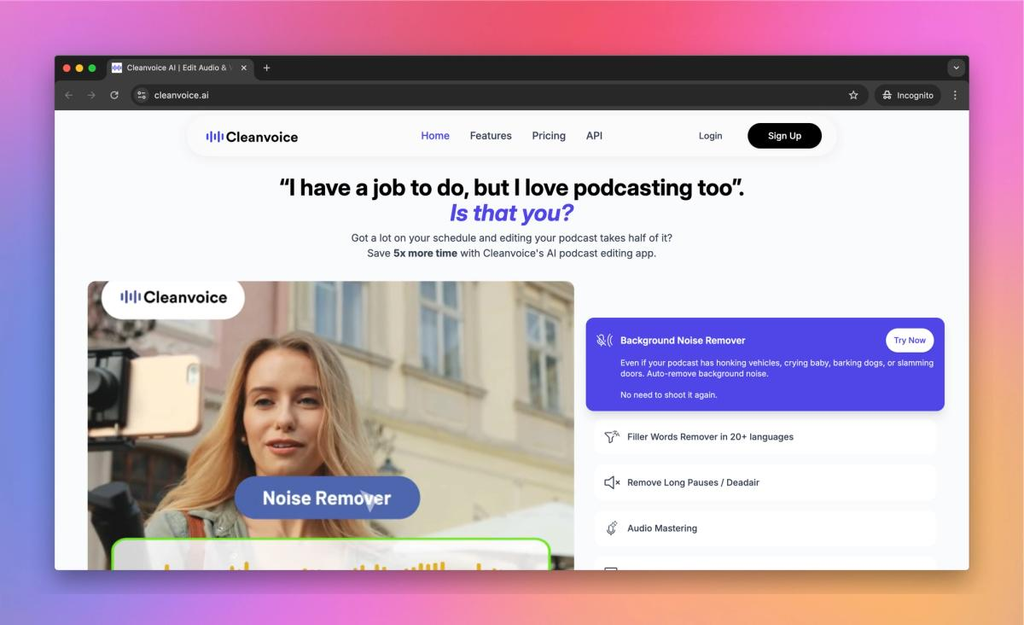
Clean voice AI focuses on making spoken-word recordings cleaner and easier to publish.
It is particularly interesting for podcast creators because its workflow extends beyond ordinary background-noise reduction. The platform can help identify filler words, unwanted pauses, mouth sounds, and other distractions that affect the listening experience.
Think about a podcast interview containing repeated words such as “um,” “uh,” and “you know.” These expressions are natural parts of conversation, but excessive repetition can make a finished episode feel less polished. Clean voice can help identify and remove certain unwanted elements automatically.
It can also support more efficient production by reducing repetitive manual editing. Rather than listening through an entire recording to find every distracting sound, creators can use AI-assisted processing to identify sections that may need attention.
The platform is especially helpful when producing multiple episodes or working with long recordings. Its free trial allowance provides an opportunity to test the workflow, although regular usage may require a paid plan. Dupple+1
Key features:
- AI-assisted podcast cleanup.
- Filler-word removal.
- Mouth-sound reduction.
- Silence and pause editing.
- Automated production workflows.
Best for: Pod casters, interview editors, and content production teams.
Limitation: It is more focused on spoken-content editing than detailed restoration of heavily damaged audio.
Audacity
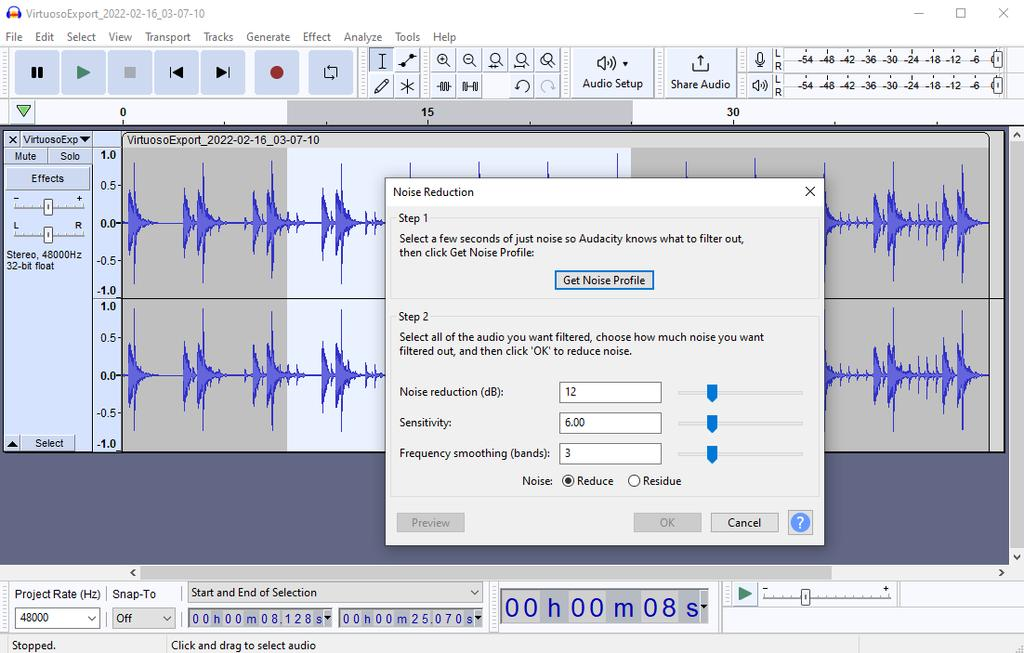
Audacity is an excellent choice if you prefer free desktop software and want greater control over your recordings.
Unlike many browser-based AI services, Audacity is a traditional audio editor. It provides tools for recording, trimming, editing, filtering, and processing audio files.
Its Noise Reduction effect is especially useful for constant background sounds such as electrical hum, steady fan noise, and microphone hiss. You can select a portion containing only the unwanted noise, capture a noise profile, and apply reduction to the rest of the recording.
This method isn’t fully automatic, but it is relatively straightforward once you understand the basic steps.
Audacity also supports plugins, giving experienced users access to additional audio-processing capabilities. However, plugin compatibility varies by version, so check the documentation before installing AI-related extensions.
One important distinction: Audacity’s traditional Noise Reduction effect should not be confused with modern generative AI speech enhancement. It works best when unwanted noise remains relatively consistent throughout the recording. Audo+1
Key features:
- Free and open-source software.
- Noise Reduction effect.
- Audio trimming and editing.
- Equalization and filtering.
- Plugin support.
- Local desktop audio processing.
Best for: Students, beginners willing to learn basic editing, independent creators, and budget-conscious users.
Limitation: It requires more manual work than one-click AI speech enhancement platforms.
3. Comparing Popular AI Audio Cleanup Tools
Choosing the right platform becomes easier when you compare its features, intended audience, and pricing model. Although these tools share some capabilities, they are not interchangeable. A platform designed for live meetings may not provide the detailed controls needed to repair an old interview, while a professional audio editor might be unnecessarily complicated for someone who only wants to improve a short voice recording.
Here is a practical comparison of the seven tools discussed above.
| AI Tool | Main Purpose | Free Option | Best For |
|---|---|---|---|
| Adobe Podcast | Speech enhancement | Yes, with limits | Quick voice cleanup |
| Descript | Audio and video editing | Yes, limited | Content creators |
| Auphonic | Audio post-production | Yes, limited | Podcast production |
| Krisp | Live noise cancellation | Limited free access | Online meetings |
| ElevenLabs | Voice isolation | Limited free credits | Noisy dialogue |
| Cleanvoice AI | Podcast cleanup | Limited trial | Removing speech distractions |
| Audacity | Manual audio editing | Completely free | Basic noise reduction |
Free allowances and subscription conditions can change. Check the official websites before purchasing.
Which Tool Should You Choose?
If you’re a beginner, Adobe Podcast is a sensible starting point because it offers a straightforward way to enhance spoken audio without learning complicated editing techniques. If you regularly create podcasts, Auphonic or Clean voice may provide a more useful production workflow. Descript is attractive when you want to edit both audio and video, while Krisp makes more sense when you need to prevent background noise during live conversations.
For difficult recordings containing multiple voices or distracting environmental sounds, ElevenLabs Voice Isolator is worth testing. Meanwhile, Audacity remains a dependable free option when you want local editing and manual control.
The most expensive tool isn’t necessarily the best one. Your ideal choice depends on the recording problem, how frequently you work with audio, and how much control you want over the final result.
4. How to Clean Noisy Audio Using AI
Using AI to improve a noisy recording is generally much easier than traditional audio restoration. Most beginner-friendly applications follow a similar process: upload the recording, select an enhancement feature, allow the software to process the file, and download the improved version.
However, getting the best possible result involves more than clicking an enhancement button. You should understand the type of noise affecting your recording, choose an appropriate tool, and listen carefully to the processed result.
For example, a recording containing steady computer-fan noise may require a different approach from an interview recorded beside a busy road. Similarly, a voice recording with noticeable room echo may benefit from speech enhancement rather than ordinary noise reduction.
Before uploading anything, keep an untouched copy of your original recording. This gives you the flexibility to experiment with different settings without permanently changing the source file.
Step-by-Step Audio Enhancement Workflow
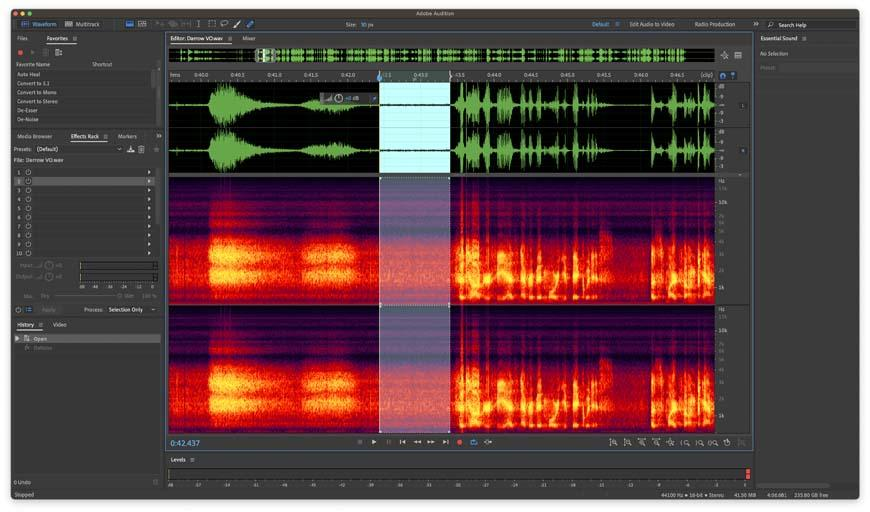
Step 1: Select the recording you want to improve.
Start by identifying the audio file that needs cleaning. Common formats include MP3, WAV, M4A, and AAC, although supported formats vary between platforms. Listen to the original recording using headphones and identify the most distracting sounds. Is the problem constant background hiss, traffic, overlapping conversations, echo, or inconsistent volume? Understanding the problem helps you choose an appropriate enhancement method.
Step 2: Choose a suitable AI audio cleaner.
Select a tool based on the recording rather than choosing an application simply because it is popular. Adobe Podcast is a good starting point for spoken audio, while Auphonic is useful for podcast production. If you’re preparing for a live meeting, Krisp may be more appropriate. Check the file-size, duration, and format restrictions before uploading.
Step 3: Upload your audio file.
Open the selected platform and upload your recording. Most browser-based services provide an upload area where you can select a file from your computer. Some applications also support direct recording or integration with other editing workflows. Allow the upload to finish before beginning the enhancement process.
Step 4: Apply AI enhancement.
Activate the available noise reduction, speech enhancement, or voice isolation feature. Depending on the platform, the processing may happen automatically or allow you to adjust the enhancement strength. Avoid choosing the strongest setting immediately. Moderate processing often preserves more natural voice characteristics.
Step 5: Compare the original and enhanced versions.
This is one of the most important steps. Listen to both versions and check whether the background noise has actually decreased. Pay attention to speech clarity, consonants, pauses, and changes in the speaker’s voice. If the enhanced version sounds unnatural, reduce the processing strength or try another tool.
Step 6: Export and save the improved recording.
Once you’re satisfied with the result, export the cleaned audio in a suitable format. WAV is useful when you plan additional editing because it preserves uncompressed audio data, while MP3 is convenient for sharing and publishing. Keep the original file as a backup.
Following this workflow can save considerable editing time while improving the listening experience for your audience.
5. Benefits of Using AI Audio Cleanup Tools
AI audio enhancement offers several practical advantages, especially for people who regularly create or share recorded content. The biggest benefit is accessibility. Tasks that once required specialized audio knowledge can now be performed through relatively simple applications.
One major advantage is time savings. Imagine manually editing a 45-minute interview to reduce background noise, adjust volume, and improve speech clarity. That process could require considerable effort. AI tools automate many repetitive operations, allowing creators to spend more time preparing content rather than correcting technical problems.
Another benefit is improved accessibility. People listening through mobile phone speakers, inexpensive headphones, or noisy environments may struggle with unclear recordings. Reducing distracting background sounds can make important speech easier to understand.
AI cleanup can also improve content quality without requiring an expensive recording studio. Independent creators can produce more polished voice overs using ordinary recording equipment. Teachers can make educational recordings easier to follow, and small businesses can improve their training materials and recorded presentations.
There is also a productivity advantage for remote teams. Background noise can interrupt meetings and make communication difficult. Real-time noise cancellation tools help participants concentrate on conversations rather than environmental distractions.
Here are some additional advantages:
- Beginner-friendly workflows: Many applications offer automatic processing without requiring advanced audio knowledge.
- Improved speech intelligibility: Reducing unwanted sounds can make spoken information easier to understand.
- Flexible production: Browser-based tools allow users to enhance recordings without installing large editing applications.
- More consistent output: Audio leveling and normalization can reduce distracting differences in volume.
- Lower production costs: Creators can improve ordinary recordings without immediately investing in professional restoration services.
- Faster content publishing: Automated processing helps reduce the time between recording and publication.
The important point is that AI audio cleanup doesn’t replace good recording practices. Instead, it provides an additional layer of support when your recording environment isn’t ideal.
6. Limitations and Common Mistakes to Avoid
Although AI audio enhancement has improved considerably, it still has limitations. Understanding these limitations helps you avoid unrealistic expectations and unnecessary processing.
The first common mistake is assuming that AI can completely repair every damaged recording. If a microphone captures severely distorted speech, important sound information may already be lost. AI might improve the perceived quality, but it cannot reliably reconstruct every missing detail.
Another problem is over-processing. When noise reduction is applied too aggressively, the speaker’s voice can lose its natural texture. Certain consonants may become softer, pauses may sound unnatural, and the recording may develop metallic or watery artifacts.
Privacy is another important consideration. Many browser-based AI tools require users to upload audio to cloud servers for processing. If your recording contains confidential business conversations, private interviews, personal information, or sensitive customer discussions, review the platform’s privacy policy, data-retention rules, and processing arrangements before uploading it.
You should also avoid repeatedly processing the same recording through multiple AI systems without checking the results. Each enhancement stage can introduce additional artifacts. A better approach is to use the most suitable tool first and apply further processing only when necessary.
Finally, don’t ignore the original recording environment. Moving closer to the microphone, reducing nearby noise, and choosing a quieter room can often produce a greater improvement than applying multiple software filters afterward.
A simple rule: Use AI to improve good recording practices, not as a replacement for them.
7. How to Choose the Right AI Audio Cleanup Tool
Selecting the right software depends on your intended use, technical experience, recording quality, and budget. A student cleaning up a lecture recording doesn’t need the same features as a professional podcast producer.
Start by identifying your main objective. If you simply want to make a voice recording clearer, a straightforward speech enhancer may be sufficient. If you produce podcasts regularly, look for additional features such as automatic volume leveling, silence removal, and batch processing.
Next, consider ease of use. Beginners usually benefit from applications that provide simple upload-and-enhance workflows. More experienced editors may prefer tools with manual controls, frequency adjustments, and detailed restoration features.
Pricing is another consideration. Several platforms provide free allowances, but those allowances may have file-duration limits, processing restrictions, or monthly usage caps. If you only clean a few recordings occasionally, a free option may be enough. If audio editing is part of your regular business, a subscription could offer better value.
Also consider whether you need cloud-based or offline processing. Online services are convenient, but desktop software may be preferable when you need local file handling or more control over your production environment.
Use these practical recommendations:
| Your Requirement | Recommended Tool |
|---|---|
| Quick speech enhancement | Adobe Podcast |
| Podcast editing and enhancement | Descript |
| Automatic podcast mastering | Auphonic |
| Live meeting noise reduction | Krisp |
| Separating speech from background sounds | ElevenLabs |
| Removing filler words and mouth sounds | Cleanvoice |
| Free desktop noise reduction | Audacity |
Ultimately, the best AI audio cleaner is the one that solves your particular recording problem without making the original sound unnatural.
Conclusion
Cleaning up noisy audio recordings has become significantly easier with modern AI technology. You no longer need expensive recording equipment or professional audio-engineering knowledge to improve the quality of everyday recordings. With the right application, you can reduce background noise, improve speech clarity, remove distracting sounds, and create more professional audio in considerably less time.
Tools such as Adobe Podcast, Descript, Auphonic, Krisp, ElevenLabs Voice Isolator, Clean voice AI, and Audacity offer different approaches to audio enhancement. Each has its own strengths, making it important to select one according to your requirements.
For beginners, Adobe Podcast is an excellent place to start. Pod casters may benefit from Auphonic or Descript, while remote professionals can consider Krisp for live communication. If you prefer free desktop editing, Audacity provides useful noise-reduction capabilities without requiring a paid subscription.
Remember that excellent audio starts with good recording habits. Position your microphone correctly, choose a quieter environment, and avoid unnecessary background sounds whenever possible. AI enhancement can improve imperfect recordings, but preserving the natural quality of the original voice should always remain a priority.
The future of audio editing is becoming more accessible, intelligent, and efficient. Whether you’re producing podcasts, recording interviews, creating YouTube videos, or preparing online lessons, simple AI audio cleanup tools can help you achieve clearer sound without making the editing process unnecessarily complicated.
Frequently Asked Questions (FAQs)
1. What is the best free AI tool to remove background noise from audio?
Adobe Podcast Enhance Speech is a strong starting option for free AI-powered speech cleanup. It can reduce background noise and improve voice clarity through a simple browser-based workflow. Audacity is another excellent free option if you prefer desktop editing and manual noise reduction. Your choice depends on whether you want automatic enhancement or greater editing control.
2. Can AI remove background noise from voice recordings completely?
AI can significantly reduce many types of background noise, including traffic, fan noise, keyboard sounds, and certain types of room interference. However, complete removal isn’t guaranteed. Extremely loud background sounds, overlapping conversations, severe distortion, and poor microphone recordings can still affect the final result. Moderate enhancement usually produces more natural-sounding audio than aggressive processing.
3. Which AI audio cleaner is best for podcasts?
Auphonic and Descript are two useful options for podcast creators. Auphonic offers automated post-production, noise reduction, and volume leveling, while Descript combines speech enhancement with transcript-based editing. Clean voice AI is another option for removing filler words, mouth sounds, and unwanted pauses. The best choice depends on your podcast production workflow.
4. Can I clean noisy audio recordings without installing software?
Yes. Several AI audio enhancement platforms work directly through web browsers. Adobe Podcast, Auphonic, and other online services allow users to upload recordings, process them, and download improved audio. This approach is convenient because you don’t need to install complicated editing applications. However, check file-size restrictions and privacy policies before uploading recordings.
5. Does AI audio enhancement reduce the original voice quality?
It can, particularly when the enhancement settings are too aggressive. Some AI systems reconstruct speech to make it clearer, which may slightly change the speaker’s natural voice characteristics. You might notice metallic sounds, artificial textures, or missing details. To avoid these problems, use moderate settings and always compare the enhanced recording with the original before publishing.
