

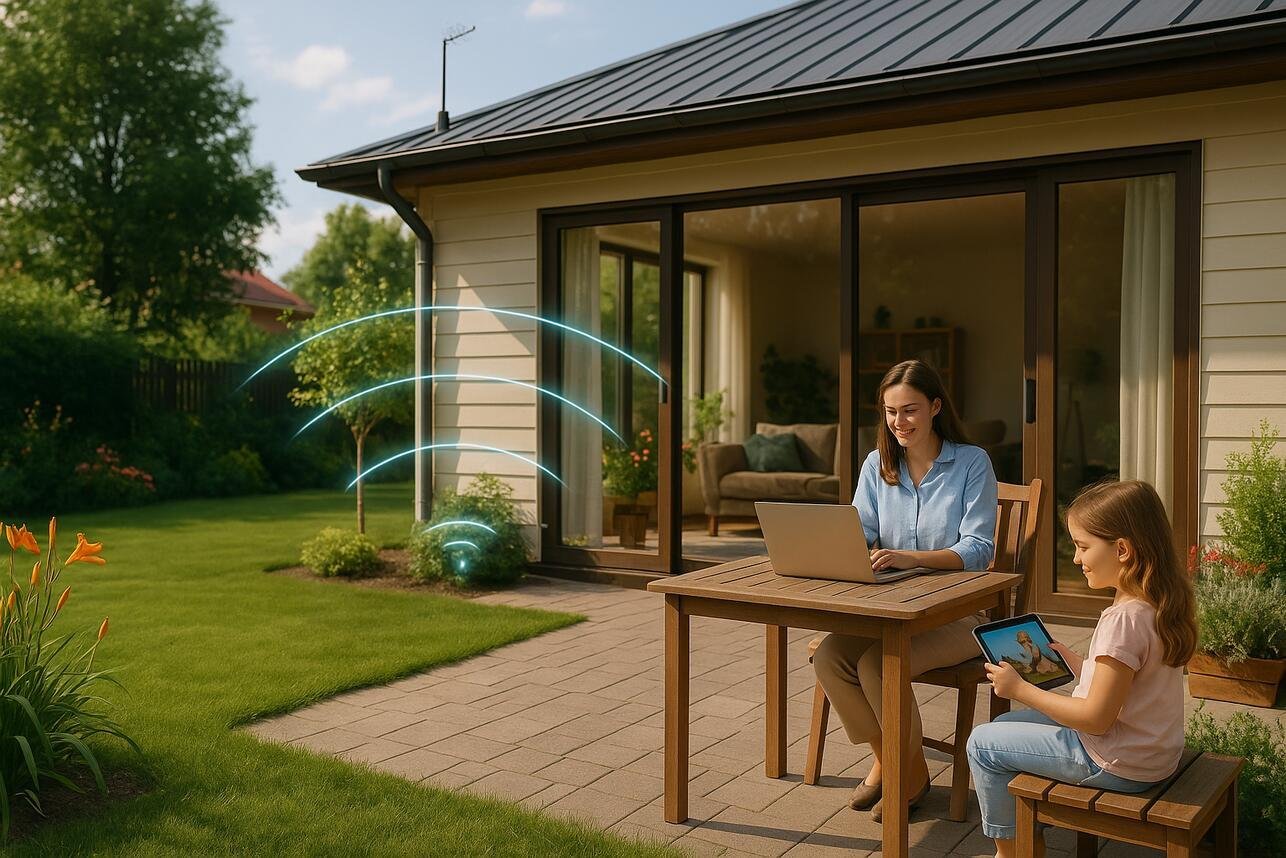
Have you ever tried to stream music on your patio, join a video call from your garage, or connect a smart security camera outside, only to discover that your Wi-Fi signal disappears as soon as you step outdoors? You’re not alone. Many home Wi-Fi networks work perfectly inside the living room but struggle to reach outdoor spaces because of distance, thick walls, metal doors, and other obstacles.
The good news is that you don’t necessarily need a faster internet plan or an entirely new router to extend Wi-Fi range outdoors. In many cases, repositioning your existing router, adding a Wi-Fi extender, or installing a mesh node can solve the problem. For detached garages and larger outdoor areas, a wired access point may provide a more dependable connection.
The trick is choosing the right solution for your property, budget, and intended use. Let’s explore the practical options, how to install them, and how to get reliable outdoor Wi-Fi without spending money on equipment you don’t need.
Why Your Wi-Fi Signal Struggles Outdoors
Wi-Fi uses radio waves to transmit data between your router and connected devices. Those waves travel through open air, but their strength decreases with distance, and physical obstacles can weaken the signal before it reaches your patio or garage. That’s why your phone might show full Wi-Fi bars in the kitchen but struggle to load a web page just a few meters beyond an exterior wall. The distance alone isn’t always the problem; the materials between your router and your device can make a considerable difference.
Imagine your router as a small lighthouse sending out signals in every direction. If your patio sits behind a lightweight wooden door, the signal might reach it reasonably well. If the same patio is separated from the router by reinforced concrete, brickwork, metal siding, or a garage door, the connection can become much weaker. Add neighboring Wi-Fi networks, electronic interference, and several connected devices, and even a capable router may struggle to provide a stable connection.
Common Causes of Weak Outdoor Wi-Fi
Several factors commonly contribute to poor outdoor coverage, and identifying the main problem helps you avoid buying the wrong equipment. A router hidden in a cabinet or positioned at the far end of a house may have difficulty reaching an outdoor seating area. A detached garage introduces another challenge because the signal must travel across open space and through the garage’s walls or doors. Metal structures, dense walls, and appliances can further interfere with wireless communication.
Before spending money, test your connection in three places: near the router, just inside the exterior wall closest to your patio or garage, and at the spot where you want to use your devices. Run a speed test at each location and try loading a website or playing a short video. If the connection is fast indoors but unreliable outdoors, you’re probably dealing with a coverage issue. If speeds are poor even beside the router, investigate your internet connection, router performance, or network congestion before investing in outdoor equipment.
1. Find the Best Location for Your Router
The easiest way to improve outdoor Wi-Fi is to reposition your existing router. This costs nothing, takes only a few minutes, and can make a surprising difference when the current placement is poor. Ideally, your router should sit in an open, elevated location rather than inside a cupboard, behind a television, or on the floor. If possible, place it somewhere reasonably central in your home, with a relatively clear path toward the outdoor area you want to cover.
Think about the layout of your home before moving anything. If your patio sits directly behind the kitchen, placing the router on a shelf closer to that exterior wall may improve reception. If the garage is on the opposite side of the property, moving the router a few feet in that direction could help, provided you don’t sacrifice coverage in other important rooms. Keep the router away from large metal objects, refrigerators, and other potential sources of interference. Avoid placing it directly against thick masonry if you can position it somewhere more open.
After repositioning the router, walk outside with your phone and repeat your speed tests. Check the signal at the patio table, near the garage entrance, and wherever you intend to install smart devices. Don’t rely exclusively on the Wi-Fi icon because it doesn’t tell you whether the connection is fast or stable enough for your needs. If moving the router produces only a small improvement, that’s useful information: it suggests you may need additional equipment to bridge the distance or overcome building materials.
2. Use a Wi-Fi Extender
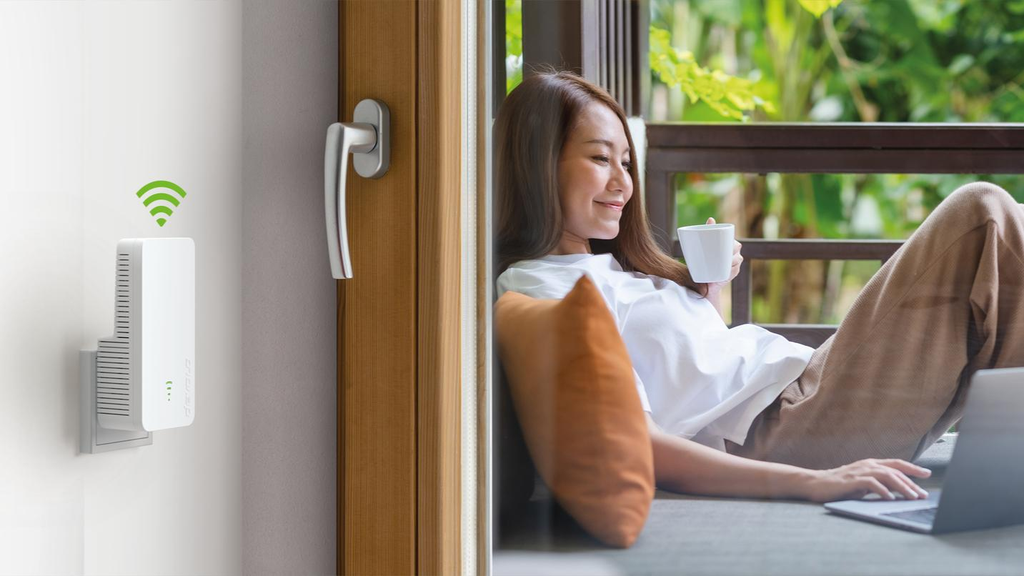
A Wi-Fi extender, sometimes called a range extender or repeater, is one of the simplest ways to expand coverage into a nearby patio or garage. It receives the signal from your existing router and re transmits it into an area where coverage is weak. Instead of replacing your current network equipment, you add another device to help carry the connection farther. For a patio located just beyond an exterior wall or a garage attached to the house, this can be an affordable solution.
Placement is the most important part of the installation. A common mistake is plugging the extender into the wall socket nearest the patio, where the original Wi-Fi signal is already almost nonexistent. An extender cannot reliably repeat a connection it cannot receive properly. Instead, place it somewhere between the router and the target area, where it still receives a strong, usable signal. TP-Link current placement guidance also emphasizes the importance of distance, elevation, and reducing obstacles between the extender and router.
Here’s how to set it up:
- Check the manufacturer’s instructions to confirm compatibility with your router.
- Plug the extender into an indoor outlet where the router’s signal is still reasonably strong.
- Complete the setup using the manufacturer’s app or web interface.
- Position the extender toward the exterior wall closest to your patio or garage.
- Test internet speed and stability in the target area, moving the extender if necessary.
Some extenders create a separate Wi-Fi network name, while others can use the same network name as your existing router. The exact behavior depends on the model. If seamless movement between indoor and outdoor areas matters, check the device’s roaming and compatibility features before buying it.
One limitation is that a wireless extender must maintain a good connection back to the router. Some models also lose throughput when they receive and re transmit data over the same wireless radio channel. For browsing, messaging, and music streaming, that may be acceptable. If you need consistently high speeds for work, video calls, or large file transfers, consider a mesh system or a wired access point instead.
3. Install a Mesh Wi-Fi System
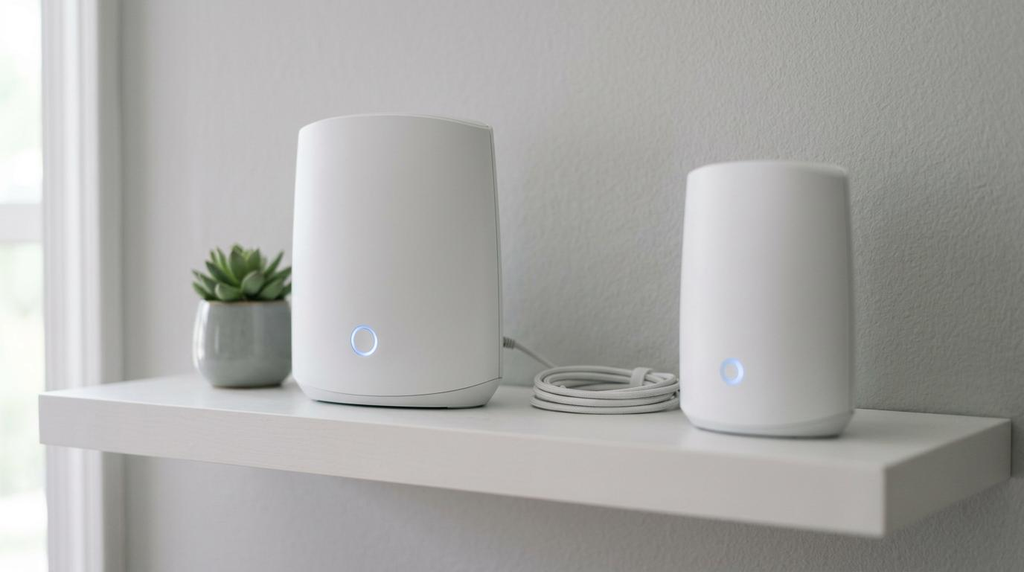
A mesh Wi-Fi system uses multiple access points, often called nodes, to provide more consistent wireless coverage throughout a property. One device connects to your modem or main router, while additional nodes extend the network into areas that the primary unit cannot cover effectively. Depending on the system, the nodes communicate wirelessly or through an Ethernet connection. This makes mesh particularly useful when you want reliable Wi-Fi across several rooms and into an outdoor seating area.
For example, imagine that your router sits in a front bedroom while your patio is behind the kitchen. You could position a mesh node in a suitable room nearer the back of the house, provided it still has a strong connection to the primary node. The additional node then provides a closer connection point for your phone, tablet, laptop, or smart speaker. This is generally more effective than putting a node directly in the dead zone and expecting it to create a strong connection from nothing.
Setup is usually straightforward. Most consumer mesh systems use a mobile app to guide you through connecting the primary device, adding nodes, and checking network performance. Follow the manufacturer’s recommendations for spacing and run any available mesh or connection test after installation. Google, for example, advises placing mesh points in open areas and moving them closer together when the connection between nodes is weak.
The main consideration is that a mesh node is not automatically an outdoor device. Many standard mesh units are designed for indoor use and should not be exposed to rain, moisture, dust, or extreme temperatures. If your patio needs direct outdoor coverage, choose a weather-rated outdoor mesh unit or install an indoor node in a suitable protected location. For a detached garage, a mesh system may work if the distance and building materials permit a strong back haul connection, but a wired link is usually the more dependable option when wireless signals struggle to cross the property.
4. Set Up an Outdoor Wi-Fi Access Point
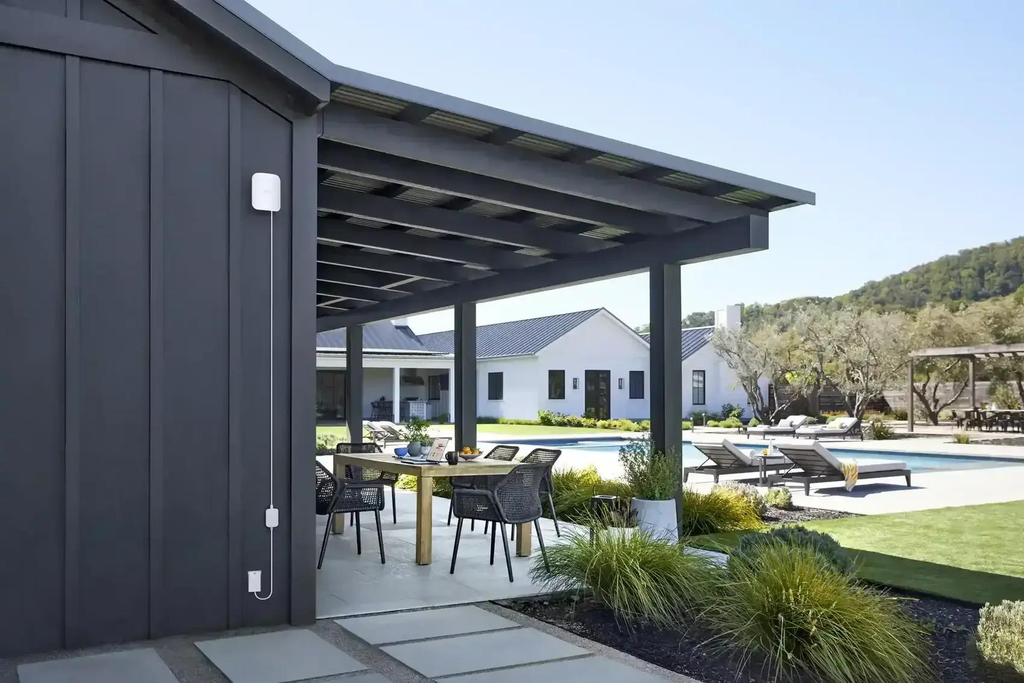
If you want dependable Wi-Fi across a patio, garden, workshop, or detached garage, an outdoor Wi-Fi access point is often one of the strongest long-term solutions. An access point creates a wireless coverage area and connects to your existing network, commonly through an Ethernet cable. Unlike a wireless-only extender, a wired access point doesn’t need to rely on a weak Wi-Fi signal from inside the house to receive its network connection.
This approach is particularly attractive when the outdoor space is used regularly. Perhaps you work from a garden office, use smart cameras around your property, stream video on a covered patio, or operate connected equipment inside a workshop. A properly installed outdoor access point can provide more consistent coverage than trying to push a signal through several walls. The exact performance will depend on the access point’s capabilities, its placement, the cable connection, and the devices connecting to it.
Look for equipment explicitly rated for the environmental conditions where you plan to install it. An indoor access point mounted beneath an awning is not necessarily suitable for exposure to wind-driven rain, humidity, dust, or summer heat. Check the product’s ingress-protection rating, operating-temperature range, mounting requirements, and power options. If the access point supports Power over Ethernet (PoE), a compatible PoE switch or injector may allow one Ethernet cable to carry both network data and electrical power.
Wired vs. Wireless Access Points
A wired access point receives data over Ethernet, while a wireless mesh node or repeater receives its upstream connection over Wi-Fi unless the system supports wired back haul. That distinction matters because the quality of the connection feeding the access point affects the experience of every device connected to it. If your garage is far from the house or separated by dense masonry, a cable can bypass many of the obstacles that make wireless coverage unreliable.
| Feature | Wired outdoor access point | Wireless extender or node |
|---|---|---|
| Connection to the main network | Ethernet cable | Usually Wi-Fi |
| Installation effort | Higher if cable routing is needed | Generally easier |
| Reliability over long distances | Usually better with a suitable cable run | Depends on signal strength and obstructions |
| Outdoor suitability | Choose a weather-rated model | Requires a model specifically rated for outdoor use if exposed |
| Typical use case | Detached garage, workshop, larger patio | Nearby patio or a modest coverage gap |
| Power | PoE or local power, depending on model | Usually a local power outlet |
To install a wired access point, connect it to your router or network switch using Ethernet, then follow the manufacturer’s setup instructions. Configure the wireless network with the appropriate security settings and test the connection where you’ll actually use it. Outdoor cabling must be suitable for its route and exposure, and any wall penetrations should be sealed appropriately. For long runs, underground installations, or mains electrical work, use suitable rated materials and a qualified professional where required.
5. Consider a Power line or MoCA Adapter
What if your garage is too far away for a reliable wireless connection, but running Ethernet cable through the property seems difficult? A power line networking kit may offer an alternative. These adapters use a home’s electrical wiring to carry network data between compatible units. You connect one adapter to the router with Ethernet and plug it into an appropriate electrical outlet, then install the second adapter near the location where you want to provide a network connection.
The second adapter may offer an Ethernet port for an access point or other device, depending on the model. Some kits also include Wi-Fi functionality. However, power line performance varies considerably with the condition and layout of the electrical circuits, electrical noise, and how the adapters are connected. If the house and detached garage are supplied by separate electrical circuits or distribution arrangements, compatibility and performance can be less predictable. Check the manufacturer’s requirements before purchasing equipment, and test the connection before relying on it.
MoCA adapters are another option when compatible coaxial TV cabling is already installed between the relevant areas. MoCA carries network data over supported coaxial wiring, allowing you to establish a wired network link without installing new Ethernet throughout the building. Whether it works depends on the existing coaxial layout, splitters, filters, and other equipment. You may then connect a Wi-Fi access point to the remote adapter to create local wireless coverage.
Neither power line nor MoCA is a magic solution for every property. Power line depends on electrical wiring conditions, while MoCA requires a suitable coaxial cable path. A new Ethernet run is often more predictable if it is practical to install. Still, these technologies can be useful when the right wiring already exists and you need a network connection in a room where wireless coverage is poor.
6. Choose the Right Wi-Fi Band
Wi-Fi frequency bands affect how well your network balances range and speed. The two bands most commonly encountered in home networks are 2.4 GHz and 5 GHz. Some newer equipment also supports 6 GHz, although availability depends on the router, client device, and local regulatory requirements. Each band has different characteristics, so the best choice for your patio or garage depends on the distance, obstacles, and performance you need.
The 2.4 GHz band generally offers better reach through typical residential environments, although it can be crowded by neighboring networks and other devices. The 5 GHz band often supports higher speeds and may have less congestion, but its signal typically weakens more quickly through walls and over distance. The 6 GHz band can provide additional capacity on compatible devices, but it is not usually the first choice when the main goal is reaching a distant outdoor location. Actual performance depends on channel width, interference, transmit power, hardware, and environmental conditions.
If your router offers separate network names for different bands, test both from the patio and garage. If it uses one network name for multiple bands, the router may automatically steer compatible devices toward a suitable band. That can simplify everyday use, although it may make it harder to control which band a device uses during troubleshooting. Smart home products may also require a 2.4 GHz connection during setup, so check the manufacturer’s requirements.
Don’t assume that choosing the highest frequency will automatically improve your connection. A strong, stable 2.4 GHz connection can be more useful than a weak 5 GHz connection that frequently drops out. Conversely, a nearby outdoor access point with a strong 5 GHz signal may deliver better performance for video calls or high-resolution streaming. Test your equipment under real conditions rather than relying on the advertised maximum speed printed on the box.
7. Improve Wi-Fi Coverage in a Detached Garage
A detached garage presents a different challenge from an attached patio because it may be separated from the house by open space, brick walls, metal siding, and a large garage door. If the building is used for storage, basic connectivity may be sufficient. If it functions as a workshop, home office, gym, or smart home control centre, a stronger and more stable connection may be necessary.
Start by testing Wi-Fi outside the house, along the route toward the garage, and inside the garage with its door both open and closed. If the connection is strong near the house but disappears inside the building, the structure itself may be the main obstacle. Metal garage doors and dense construction materials can significantly weaken wireless signals. Simply purchasing a more powerful router may not overcome these barriers, particularly if the garage is a considerable distance away.
For the most dependable setup, consider these options in order of practicality:
- A dedicated Ethernet cable and outdoor-rated access point: Often the best choice when the garage needs reliable connectivity for work, streaming, or multiple devices.
- An outdoor mesh node: Useful when the house and garage have a reasonably strong wireless path and running cable isn’t practical.
- A wireless point-to-point bridge: Worth considering when the garage is far away and there is a suitable line of sight between buildings. A bridge creates a network link between two locations; a separate access point may be needed inside the garage.
- A power line or MoCA connection: Potentially useful if compatible wiring already provides a suitable path to the garage.
When running cable underground, use cable and conduit suitable for the installation, follow local electrical and building requirements, and keep network cabling appropriately separated from mains wiring. Never assume that ordinary indoor Ethernet cable is suitable for direct burial or prolonged outdoor exposure. For a long driveway or a garage at the far end of the property, a professional installer can help determine whether Ethernet, fibre, or a point-to-point wireless link is the most suitable approach.
The key is to treat the garage as its own coverage zone. Instead of expecting a single router inside the house to serve every corner of the property, establish a reliable network connection to the garage and then distribute Wi-Fi locally.
8. Secure Your Outdoor Wi-Fi Network
Extending your Wi-Fi range should not mean extending your security problems. Once your network reaches a patio or garage, connected devices such as security cameras, smart plugs, speakers, laptops, and workshop equipment may be able to communicate with other devices on the same network. A secure configuration helps protect your internet connection and the information passing through it.
Begin by securing your main router with WPA2-AES or WPA3 security where supported, and use a strong, unique Wi-Fi password. Change any default administrator password, install firmware updates, and disable remote administration if you don’t need it. When adding an extender, mesh node, or outdoor access point, configure it using the manufacturer’s recommended security settings rather than leaving its setup network or default credentials active.
If your router supports a guest network, consider using it for visitors and devices that don’t need access to your personal computers or shared files. Some routers also support separate networks or VLANs for smart home equipment, allowing you to limit communication between device categories. These features vary by product, so check your router’s documentation. For a home network, even basic precautions such as strong passwords, current firmware, and a properly configured guest network can make a meaningful difference.
Finally, secure the physical installation. Mount outdoor equipment according to the manufacturer’s instructions, protect cable entry points from water, and use appropriate enclosures and weather-rated connections. A well-protected access point is more likely to remain reliable through changing weather, and a secure network helps ensure that improved coverage doesn’t come at the expense of privacy.
Troubleshooting Common Outdoor Wi-Fi Problems
Even after adding equipment, you may encounter slow speeds, unstable connections, or dead zones in particular corners of the patio or garage. The most effective approach is to change one thing at a time and test the result. That way, you can identify whether the problem comes from signal strength, the link between network devices, interference, or the internet connection itself.
| Problem | Possible cause | What to try |
|---|---|---|
| Wi-Fi works indoors but not outdoors | Exterior wall or distance blocks the signal | Reposition the router or add a properly placed node |
| Extender shows a weak connection | Extender is too far from the router | Move it closer to the main router |
| Garage Wi-Fi drops when the door closes | Metal door obstructs the wireless signal | Place an access point inside the garage or use a wired link |
| Signal is strong but internet is slow | Congestion, interference, or a slow upstream connection | Test near the router and check network usage |
| Mesh node repeatedly disconnects | Weak backhaul or obstructions | Move the node into a more open position |
| Patio connection is fast but the garage is slow | Garage is farther away or has denser construction | Add a suitable outdoor node or wired access point |
If you use a mesh system, run its built-in connection test after changing node placement. Google recommends moving a node closer to the nearest mesh point when the connection between them is weak. It also advises keeping points in open locations and avoiding dense obstacles.
For a more complete test, compare performance at three points: next to the main router, beside the extender or access point, and at the location of the affected device. If the speed is already poor beside the main router, adding more coverage equipment is unlikely to solve the underlying problem. If the connection is strong near the access point but weak at the far end of the garage, you may need to reposition that access point or add another one.
You should also check that the equipment uses compatible operating modes and firmware. Some extenders can operate in repeater mode or wired access point mode, while mesh products may require devices from the same compatible system. Avoid stacking multiple wireless repeaters unnecessarily, because each additional wireless link can introduce more complexity and reduce practical performance. A simpler layout with a strong connection between each network component is usually easier to troubleshoot and maintain.
Wi-Fi Extender vs. Mesh vs. Outdoor Access Point: Which Should You Choose?
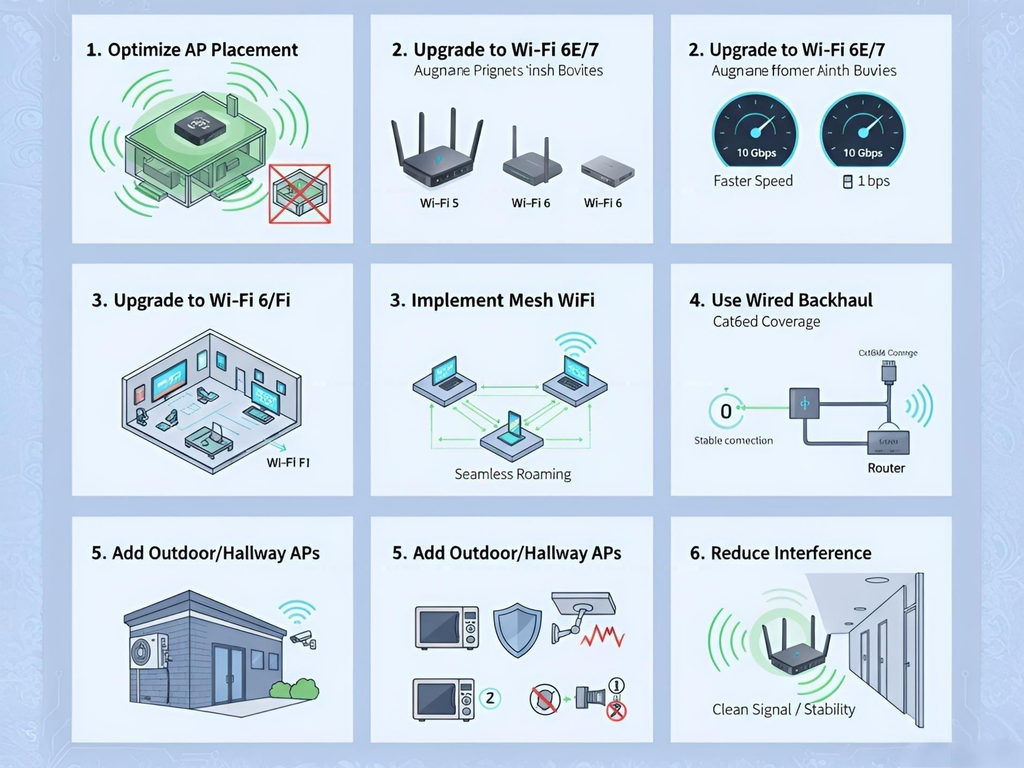
The best solution depends on how far your outdoor area is from the router, how much construction separates the two locations, and how you intend to use the connection. You don’t need an expensive professional installation to cover a small patio, but a detached garage used as a daily workspace may justify a more robust setup.
Use this comparison to narrow down your options.
| Solution | Best for | Installation difficulty | Main limitation |
|---|---|---|---|
| Router repositioning | Small coverage gaps | Very easy | May not overcome thick walls |
| Wi-Fi extender | Nearby patio or attached garage | Easy | Needs a good incoming signal |
| Mesh Wi-Fi | Multiple indoor and nearby outdoor zones | Easy to moderate | Wireless nodes need a strong connection |
| Outdoor access point | Patio, garden, or exposed outdoor area | Moderate | Requires suitable outdoor equipment |
| Wired access point | Detached garage or workshop | Moderate to advanced | Cable installation may be necessary |
| Point-to-point wireless bridge | Distant detached buildings | Advanced | Requires careful placement and compatible equipment |
| Powerline or MoCA | Buildings with suitable existing wiring | Easy to moderate | Performance depends on the wiring |
If you’re unsure where to begin, use the simplest solution that meets your needs. Start by moving the router and testing the signal. If the patio is still poorly covered, try a well-positioned extender or compatible mesh node. If your garage is detached, has metal walls, or needs dependable connectivity for work, consider a wired access point or a point-to-point bridge.
Before buying equipment, check its supported Wi-Fi standards, compatibility, weather protection, power requirements, and installation instructions. Don’t base your decision on advertised range alone. Real-world performance depends on building materials, interference, network traffic, and the connection between the router and the additional device. A carefully positioned, appropriately rated device will generally serve you better than a more expensive device installed in the wrong place.
Conclusion
Extending Wi-Fi to an outdoor patio or garage doesn’t have to be complicated. In many homes, a small adjustment to the router’s location can improve coverage enough for browsing, music, and everyday smart home tasks. When that isn’t sufficient, a Wi-Fi extender or mesh system can fill nearby dead zones, while a weather-rated outdoor access point provides a more targeted option for outdoor spaces.
For a detached garage, reliability should be your priority. A wired Ethernet connection feeding an access point is often the most predictable approach when the wireless signal has to cross a long distance or several dense obstacles. If running cable isn’t practical, an outdoor mesh node, wireless bridge, or compatible power line solution may be worth considering.
The smartest approach is to test before you buy. Identify where the signal weakens, choose equipment suited to that particular problem, and check performance after installation. With the right setup, you can enjoy a more reliable connection for outdoor work, streaming, smart cameras, and relaxing on the patio without repeatedly losing your Wi-Fi signal.
Frequently Asked Questions
1. How can I extend my Wi-Fi to my patio without buying a new router?
Start by moving your existing router to a more open, elevated location closer to the exterior wall facing the patio. Test your connection outside before purchasing anything. If the signal remains weak, a Wi-Fi extender or compatible mesh node positioned between the router and patio may help. Make sure the additional device receives a strong signal from the main router.
2. What is the best way to get Wi-Fi in a detached garage?
A wired Ethernet connection connected to an access point inside the garage is often the most reliable solution. It avoids depending on a weak wireless signal passing through the garage’s walls or metal door. If installing cable is impractical, consider a suitable outdoor mesh node or a point-to-point wireless bridge. The best choice depends on the distance, obstacles, and whether the buildings have a clear line of sight.
3. Will a Wi-Fi extender work through a brick wall or metal garage door?
It may work, but performance depends on the materials, thickness, distance, and signal strength. Brick and concrete can weaken Wi-Fi, while metal structures and garage doors can create particularly difficult obstacles. Positioning the extender where it receives a strong signal is essential. If the connection remains unreliable, use a wired access point or another solution that avoids the obstructed wireless path.
4. Is 2.4 GHz or 5 GHz better for outdoor Wi-Fi?
The 2.4 GHz band generally offers better range and penetration through typical residential obstacles, while 5 GHz can provide higher speeds when the signal is strong. For a distant patio or garage, 2.4 GHz may be more dependable. For high-bandwidth activities near an outdoor access point, 5 GHz may perform better. Test both bands when your equipment supports them.
5. Can I install an outdoor Wi-Fi extender in the rain?
Only if the specific device is designed and rated for the environmental conditions where you intend to install it. Many ordinary indoor extenders are not weatherproof and should not be exposed to rain, moisture, or extreme temperatures. Check the manufacturer’s weather-resistance rating, mounting guidance, power requirements, and cable specifications. For exposed locations, choose equipment specifically designed for outdoor use.
