

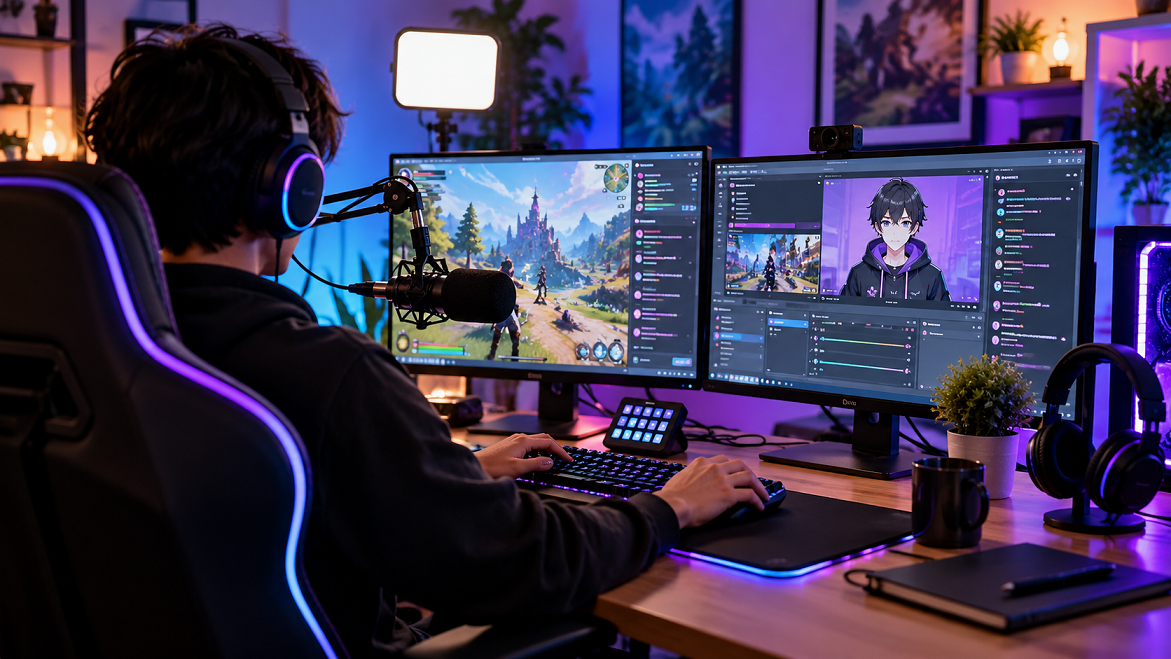
Streaming on Twitch doesn’t require you to appear on camera. Whether you prefer privacy, want to build a distinct online persona, or simply don’t feel comfortable being on camera, you can create engaging live content using game play, your voice, graphics, screen captures, or even a digital avatar.
Twitch’s own Creator Camp provides dedicated guidance for going live, building a brand, engaging viewers, using overlays, and even VTubing, which combines live streaming with digital avatars.
The key is to replace facial expressions with other forms of personality: good commentary, strong audio, an identifiable visual style, interactive chat, and consistent content.
Can You Stream on Twitch Without Showing Your Face?
Absolutely. A webcam is not essential for a Twitch stream.
A basic faceless stream can contain:
- Game play footage
- Your microphone and commentary
- Twitch chat
- Animated alerts
- Stream overlays
- A static avatar or logo
- A VTuber-style digital avatar
- Screen sharing
- Music or sound effects where you have the necessary rights
Twitch currently provides educational material covering PC streaming, mobile streaming, PlayStation, Xbox, Creator Dashboard, Stream Manager, content categories, VTubing, and broadcast improvements.
That means you can design the entire viewing experience around your content and personality rather than your face.
1. Choose Your Faceless Streaming Style
Before buying equipment, decide what viewers will actually see.
Game play + Voice
This is the simplest approach.
Your screen displays the game while your microphone provides commentary. You can react to events, explain your decisions, answer questions, tell stories, and interact with viewers.
For example:
Stream title: “Can I Finish This Boss Without Taking Damage?”
The game play creates the visual experience while your commentary provides the personality.
Game play + Avatar
Instead of a webcam, you can use an illustrated character or animated avatar.
This is particularly useful if you want your channel to have a recognizable identity without revealing your appearance.
Twitch specifically includes VTubing among its Creator Camp content categories.
No Camera + Voice
You can also keep the presentation extremely clean: game play, microphone, alerts, and chat.
This works particularly well for:
- Competitive gaming
- Strategy games
- Tutorials
- Speed running
- Game analysis
- Coding
- Creative work
No Face and No Voice
This is possible, but it requires more creativity.
You could use:
- On-screen captions
- Animated graphics
- Text-based commentary
- Music
- Visual alerts
- Game play-focused challenges
However, without either facial presence or voice, you need stronger visual storytelling to maintain attention.
2. Create Your Twitch Account and Channel
Start by creating your Twitch account and choosing a memorable username.
Your username should ideally be:
- Easy to spell
- Easy to remember
- Relevant to your content
- Consistent across social platforms when possible
Then customize your channel with:
- Profile image
- Banner
- About section
- Stream schedule
- Social links
- Content description
- Rules for your community
Twitch’s Creator Camp specifically recommends learning about personal branding, viewer engagement, social media strategy, and channel analytics as part of developing a channel.
Example
Instead of:
“Welcome to my Twitch channel.”
Try:
“Welcome to ShadowQuest — daily strategy gaming, challenge runs, and live community battles.”
A clear description immediately tells visitors what they can expect.
3. Get the Right Equipment
You don’t need an expensive studio to start.
A basic setup can include:
| Equipment | Purpose |
| Gaming PC/console | Runs your game |
| Microphone | Provides commentary |
| Headphones | Monitoring audio |
| Stable internet | Sends your stream to Twitch |
| Monitor | Gameplay and stream controls |
| Streaming software | Combines gameplay, audio and graphics |
For many faceless streamers, audio deserves more attention than expensive visual equipment.
Your audience doesn’t need to see your face, but if you’re talking for several hours, they need to hear you clearly.
A good microphone positioned correctly can make a bigger practical difference than purchasing unnecessary camera equipment.
4. Install OBS Studio
One of the most common ways to create a more customizable Twitch broadcast is OBS Studio, a free, open-source broadcasting application.
OBS lets you combine different elements called sources into scenes.
For example, your main scene might contain:
- Game Capture
- Microphone
- Desktop audio
- Twitch chat
- Alerts
- Logo
- Animated overlay
OBS’s official documentation covers scenes, sources, audio, filters, streaming settings, testing, and troubleshooting. It also recommends testing your complete setup before your first live broadcast.
5. Build a Faceless Twitch Scene
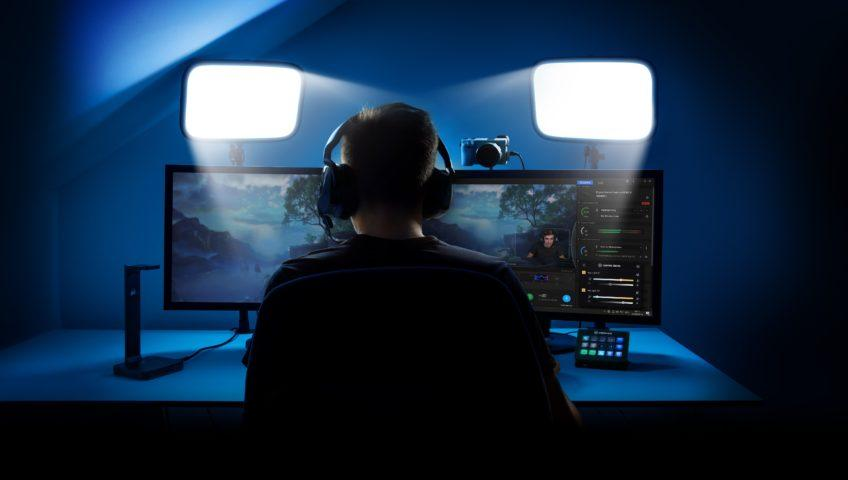
Your stream shouldn’t simply look like an untouched game window.
Create a clean visual layout.
Recommended starting layout
Main area: Game play
Bottom corner: Small channel logo
Side panel: Chat or recent activity
Top/bottom: Stream title or branding
Alerts: Followers, subscriptions, raids, etc.
Avoid filling the screen with unnecessary graphics. Your game should remain the primary visual element.
Twitch’s Creator Camp also provides dedicated lessons on stream scenes, overlays, and customized alerts.
6. Make Your Voice Your Brand
When you don’t show your face, your voice becomes one of your strongest branding tools.
You don’t have to sound like a professional broadcaster.
Instead:
- Explain what you’re doing.
- React naturally.
- Answer chat questions.
- Tell stories.
- Discuss your strategy.
- Celebrate successes.
- Laugh at mistakes.
For example, instead of silently playing a strategy game, explain:
“I’m saving this ability because I expect the boss to enter its second phase in about 30 seconds.”
Now viewers understand your thought process and have a reason to stay engaged.
Improve your microphone quality
Start with the basics:
- Position the microphone appropriately.
- Reduce background noise.
- Use a noise suppression filter if necessary.
- Prevent clipping or distortion.
- Test your voice before going live.
- Listen to a recording before your first stream.
7. Protect Your Privacy
Not showing your face doesn’t automatically make a stream anonymous.
You can accidentally reveal personal information through:
- Desktop notifications
- Browser tabs
- Emails
- Documents
- Real names
- Addresses
- Social-media notifications
- Background conversations
- Screenshots
- Location information
Before going live, close unnecessary applications and disable notifications that could appear on stream.
It’s also sensible to create a separate creator email address and avoid publicly revealing information that isn’t necessary for your channel.
Privacy and account security should be treated as part of your streaming setup, not as an afterthought.
8. Choose Copyright-Safe Content
Copyright is particularly important for streamers.
Don’t assume that music, movies, sports broadcasts, or someone else’s videos are automatically safe to use simply because they’re available online.
Twitch maintains dedicated Creator Camp material about copyright and the DMCA, including guidance about copyrighted music, videos, and other material.
When in doubt, use content that you have permission or appropriate rights to use.
This is especially important when creating a faceless channel because music and visual assets often become a larger part of the presentation.
9. Test Everything Before Going Live
Don’t make your first test your first public broadcast.
Run a private or controlled test first.
Check:
Video
- Is the game captured correctly?
- Is the image smooth?
- Is anything important hidden?
Audio
- Can you hear the game?
- Can you hear your microphone?
- Is your voice louder than the game?
- Is there background noise?
Privacy
- Are notifications hidden?
- Are personal tabs closed?
- Are private documents inaccessible?
Internet
- Is the connection stable?
- Are frames dropping?
OBS’s official documentation specifically recommends testing scenes and settings before streaming.
10. Give Viewers a Reason to Participate
A faceless channel can still feel highly personal.
Use your chat as part of the content.
For example:
“Chat chooses my next weapon.”
“Vote for the next challenge.”
“Can chat predict whether I’ll win?”
This transforms viewers from passive spectators into participants.
Twitch’s Creator Camp includes guidance on engaging viewers, collaborating, rewarding viewers, raiding, and building communities.
11. Don’t Try to Stream Everything
A common beginner mistake is switching between too many unrelated categories.
Instead, establish a recognizable theme.
For example:
Gaming channel
Competitive FPS + improvement
Strategy channel
Strategy games + educational commentary
Variety channel
Indie games + funny challenges
Creative channel
Digital art + community interaction
Tech channel
Coding + live project development
A specific identity makes it easier for viewers to understand why they should return.
12. Use Social Media to Bring Viewers to Twitch
Don’t rely exclusively on people discovering your live stream.
Turn your streams into smaller pieces of content.
For example, one two-hour stream might produce:
- 3 short clips
- 1 funny moment
- 1 tutorial
- 1 highlight
- 1 social-media post
You can publish these on platforms where your target audience already spends time.
Twitch’s Creator Camp explicitly includes social-media strategy as part of channel development.
13. Understand Twitch Monetization
A faceless Twitch channel can use Twitch’s creator monetization tools when eligible.
Twitch’s current Creator Camp covers monetization options including:
- Subscriptions
- Bits
- Extensions
- Ads
- Sponsorship
- Other monetization features
However, don’t build your entire channel around making money immediately.
Your first priority should be developing:
Content → consistency → community → audience → monetization
Revenue generally becomes more meaningful when viewers have a reason to repeatedly return.
A Simple Faceless Twitch Setup for Beginners
If you’re starting with a limited budget, you can keep things simple:
PC/console → OBS → game play capture → microphone → headphones → Twitch
Then gradually add:
Logo → overlays → alerts → better microphone → avatar → second monitor → advanced scenes
You don’t need to purchase everything on day one.
Build the production quality alongside your audience.
Faceless Twitch Stream Checklist
Before pressing Go Live, check:
- Twitch account created
- Username and branding ready
- OBS installed
- Game capture working
- Microphone working
- Desktop audio working
- Stream title written
- Category selected
- Notifications disabled
- Private information hidden
- Copyright-safe music/content confirmed
- Stream tested
- Chat moderation prepared
- Internet connection checked
For official Twitch learning resources, use Twitch Creator Camp, which currently includes dedicated material covering going live, branding, community growth, monetization, copyright, and VTubing.
Final Thoughts
Starting a Twitch channel without showing your face is completely practical. The absence of a webcam simply changes how you communicate with viewers.
Your voice, game play, avatar, graphics, storytelling, knowledge, and community interaction can become the identity of the channel.
Start with a reliable microphone, streaming software such as OBS, a simple visual layout, and one clearly defined content idea. Test everything before your first public stream, protect your personal information, respect copyright rules, and concentrate on creating broadcasts that give viewers a reason to return.
Most importantly, don’t wait for a perfect studio. A simple, well-planned faceless stream can be a much better starting point than an expensive setup without a clear content strategy.
