

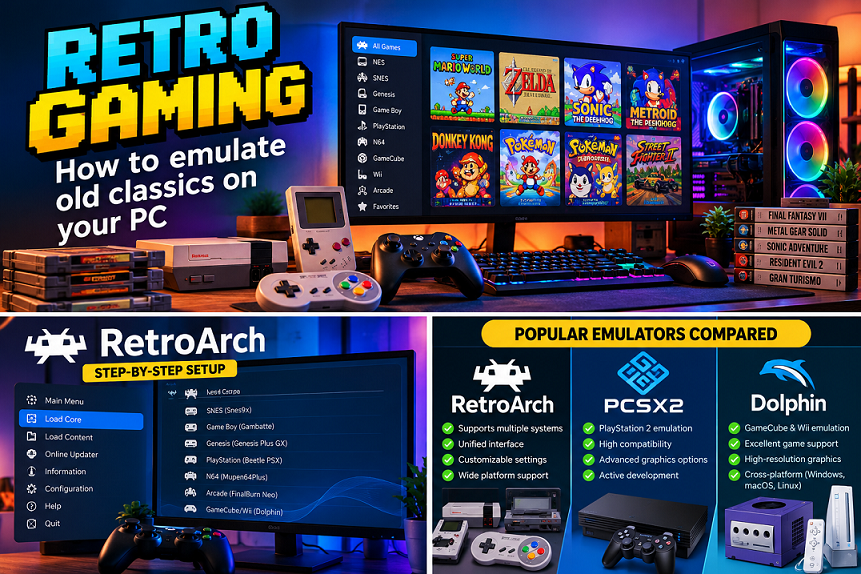
Retro gaming has become more accessible than ever. If you still remember playing classic console games on CRT televisions, cartridges, or early optical discs, modern PC hardware can recreate much of that experience while offering conveniences such as save states, higher resolutions, controller customization, and improved display options.
The technology behind this is emulation. An emulator is software that reproduces the behavior of another computer or game console so that compatible software can run on a modern PC. Depending on the system, emulation can range from lightweight 8-bit and 16-bit consoles to considerably more demanding platforms such as the PlayStation 2, GameCube, and Wii.
However, getting good results isn’t simply a matter of downloading an emulator and launching a game. Choosing the right emulator, configuring controls, understanding BIOS requirements, and using legally obtained game files all matter. This guide explains how to build a reliable retro-gaming setup on a Windows, macOS, or Linux PC.
What Is Game Emulation?
Game emulation recreates the functions of older hardware through software. Instead of requiring the original console, an emulator uses your computer’s CPU, GPU, memory, and operating system to reproduce the behavior required by the original platform.
For example, RetroArch provides a unified interface for multiple emulator “cores.” Its official documentation explains that cores contain the programs responsible for emulating particular systems.
Dedicated emulators are also available for specific platforms. PCSX2, for example, is designed for PlayStation 2 games, while Dolphin focuses on GameCube and Wii emulation.
The result can be surprisingly flexible: you can play compatible classics with modern controllers, save your progress instantly, increase internal rendering resolution, and organize an entire library from one PC.
What You Need to Get Started
A basic emulation setup doesn’t require an expensive gaming PC, particularly for older consoles.
1. A Suitable PC
For NES, SNES, Genesis/Mega Drive, Game Boy, and similar systems, even modest modern computers generally provide plenty of processing power.
More demanding platforms require stronger hardware. PCSX2’s current documentation, for example, distinguishes between minimum, moderate, and heavy configurations and recommends increasingly capable CPUs and GPUs for more demanding workloads.
2. An Emulator
Choose software according to the console you want to emulate.
Popular approaches include:
- RetroArch: A multi-system frontend using different emulator cores.
- PCSX2: PlayStation 2 emulation.
- Dolphin: GameCube and Wii emulation.
- Other dedicated emulators exist for specific consoles and computer platforms.
Downloading emulators directly from their official project websites or documentation is preferable to obtaining executable files from unknown third-party websites.
3. Game Files and System Files
An emulator does not normally include the commercial games themselves.
RetroArch’s documentation states that running content requires both an appropriate core and a ROM file, while some systems may also require additional system files such as BIOS files.
The safest approach is to understand the copyright laws applicable to your country and use game and system files that you are legally entitled to use. Rules surrounding personal backups, ROM distribution, BIOS files, and circumvention can differ by jurisdiction.
Choosing Between RetroArch and Dedicated Emulators
One of the first decisions you’ll make is whether to use a multi-system frontend or separate applications.
RetroArch for a Unified Library
RetroArch is useful if you want one interface for many older platforms. You can install the appropriate cores and manage controller settings, video options, playlists, and other features from one environment.
Its official documentation explains how cores can be installed through the application’s Core Downloader and then used to load compatible content.
This makes RetroArch particularly convenient for a large mixed library.
Dedicated Emulators for Specific Consoles
A dedicated emulator can make more sense when you’re concentrating on one platform.
For example, PCSX2 is built specifically around PlayStation 2 emulation and includes features such as custom resolutions, save states, memory-card management, and game-specific configuration.
Dolphin similarly focuses on GameCube and Wii and offers official releases for Windows, macOS, Linux, and other supported platforms.
The practical rule is simple: use the software that best matches the console and games you want to play.
How to Set Up RetroArch
RetroArch can look complicated at first, but the basic workflow is straightforward.
Step 1: Install RetroArch
Download the appropriate version for your operating system from the official RetroArch/Libretro ecosystem.
Avoid downloading “preconfigured” emulator packages from random file-sharing sites. Apart from questionable legality, modified packages can contain outdated software or unwanted files.
Step 2: Install an Appropriate Core
Open RetroArch and use the Core Downloader to install the emulator core corresponding to your console.
For example, a user wanting to emulate an older Nintendo, Sega, or handheld system would select a compatible core for that platform.
Step 3: Organize Your Game Files
Create a dedicated folder for legally obtained game files.
A simple structure might look like:
Retro Games/
├── NES/
├── SNES/
├── Genesis/
├── Game Boy/
└── PlayStation/
Keeping files organized makes scanning and troubleshooting considerably easier.
Step 4: Load Your Game
RetroArch’s documented workflow is essentially:
Load Core → Select the appropriate core → Load Content → Choose your game file.
If multiple compatible cores are installed, RetroArch can allow you to select which one should handle the content.
Setting Up a PlayStation 2 Emulator
PlayStation 2 emulation requires more configuration than many older systems.
PCSX2’s official setup documentation includes separate guidance for system requirements, BIOS dumping, disc dumping, installation, and configuration.
A typical setup involves:
- Installing PCSX2 from its official source.
- Completing the initial configuration.
- Providing a legally obtained BIOS where required.
- Preparing legally obtained game images.
- Configuring your controller.
- Selecting suitable graphics settings.
- Testing a game before making extensive changes.
PCSX2 currently provides Stable and Nightly builds. The project recommends Stable for users prioritizing stability and Nightly for users who want newer development changes.

Improving Graphics Without Losing the Retro Feel
One of the biggest advantages of PC emulation is the ability to improve presentation.
Increase Internal Resolution
Many emulators can render games internally at a higher resolution than the original hardware.
A game originally designed for a low-resolution television can therefore appear significantly sharper on a modern monitor.
However, higher resolution doesn’t automatically make every game look better. Some titles were designed around the visual characteristics of older displays, including scan lines, pixel blending, and CRT-style softness.
Use Aspect Ratio Settings Carefully
Older games frequently used display ratios that don’t correspond directly to modern widescreen monitors.
Stretching a 4:3 game to fill a 16:9 screen can make characters and environments look unnaturally wide.
When accuracy matters, maintaining the original aspect ratio is usually the better starting point.
Experiment With Shaders
RetroArch supports graphical shaders and other video-processing features. These can simulate characteristics associated with older displays or simply produce a cleaner presentation.
A useful approach is to start with no shader, then experiment gradually rather than applying a complicated preset immediately.
Configure Your Controller
A good controller can make a bigger difference to the experience than visual upgrades.
USB and Bluetooth game pads can generally be mapped to the buttons used by the original console.
For older games, pay particular attention to:
- Directional-pad accuracy
- Analog-stick sensitivity
- Trigger behavior
- Button placement
- Controller vibration
- Hotkeys for emulator functions
RetroArch also supports configurable hotkeys for functions such as rewind and fast-forward.
For games that relied heavily on pressure-sensitive buttons, analog controls, light guns, or unusual accessories, controller configuration may require additional experimentation.
Save States vs. Traditional Saves
Modern emulators often provide save states, allowing you to capture the exact state of a game and return to it later.
This is extremely convenient, but don’t completely abandon the original game’s built-in save system.
A sensible strategy is to use normal in-game saves for long-term progression and save states for temporary checkpoints.
This reduces the chance of becoming dependent on a save state that later becomes incompatible after changing emulator settings or versions.
Troubleshooting Common Problems
The Game Runs Too Slowly
Start by checking the emulator’s recommended settings before increasing graphical enhancements.
For demanding systems, reduce internal resolution or disable expensive effects.
PCSX2’s documentation notes that graphics APIs such as Vulkan, OpenGL, and Direct3D can behave differently depending on hardware and operating system, so the appropriate choice can vary between systems.
Audio Crackles or Stutters
Audio problems can result from performance issues, incorrect synchronization settings, or an unsuitable configuration.
First return the emulator to conservative settings. If the problem disappears, change one option at a time until you identify the source.
The Game Doesn’t Boot
Check:
- Whether the emulator supports the game.
- Whether you’re using the correct core.
- Whether required BIOS/system files are present.
- Whether the game file is valid.
- Whether your emulator version is current.
Don’t assume that a failed launch means the entire emulator is broken.
Keep Your Emulator Setup Safe
Emulators themselves are legitimate software projects, but downloading unknown game files or modified emulator packages can introduce security and legal risks.
A few simple precautions help:
- Download emulator software from official project sources.
- Keep your operating system and graphics drivers updated.
- Don’t run suspicious executable files supplied alongside ROM collections.
- Back up your save files.
- Keep emulator configurations organized.
- Don’t install unofficial “all-in-one” packages unless you can verify their contents.
PCSX2 explicitly warns users not to run untrusted programs through the emulator because it is not a security sandbox.
Final Thoughts
PC emulation offers one of the most flexible ways to revisit classic games. With the right emulator, controller, configuration, and legally obtained game files, an ordinary modern PC can become a versatile retro-gaming machine.
The key is to avoid over complicating the setup. Start with one console, install the appropriate emulator, configure your controller, test a few games, and only then explore advanced features such as up scaling, shaders, save states, and custom profiles.
Most importantly, treat emulation as more than simply making old games run. With careful configuration, it can provide a convenient way to preserve and experience gaming history while still enjoying the advantages of modern PC hardware.
