






Have you recently updated your phone, only to discover that the battery percentage drops much faster than before? Perhaps your phone used to last all day, but now you need to charge it twice, even when your daily usage has not changed. This can be frustrating, especially when you installed the update expecting better performance, improved security, and new features.
The good news is that phone battery draining fast after a system update is not always a sign of permanent battery damage. Background optimization, applications running unnecessarily, changed settings, and software bugs can all contribute to the problem. Google’s official Pixel support documentation explains that increased battery consumption can be normal immediately after a software update because the phone needs to optimize and prepare the new software. In this guide, you will learn how to identify the cause, fix common battery-drain problems, and help your Android phone or iPhone last longer without unnecessarily resetting your device.
Why Does Your Phone Battery Drain After an Update?
A system update changes more than the appearance of your phone. It can update system services, improve security, change power-management behavior, and require applications to adapt to the new operating system. During this process, your phone may temporarily use more processing power than usual. Imagine renovating a house: even when the renovation improves the building, workers need electricity to finish the job. Similarly, your smartphone may need additional energy while completing post-update tasks.
Another possible reason is that an application has not adapted properly to the new software. A social media app might refresh content repeatedly, a cloud storage app might synchronize files, or a navigation app might continue using location services in the background. Sometimes, an update can also change display settings, network behavior, or battery optimization preferences. The key is to identify which activity consumes the most power rather than immediately assuming the update damaged your battery.
Background Optimization and System Tasks
After installing an update, your phone may reorganize files, optimize applications, index photos and documents, synchronize accounts, or finish configuring system components. These activities can increase processor usage and generate additional heat, especially during the first few days. Apple also explains that an iPhone may display an update-related insight when background work is temporarily affecting battery life and thermal performance.
For this reason, the first step is to observe the problem instead of changing every setting at once. If your phone is otherwise working normally, give it time to complete its background tasks. Connect it to a reliable charger when necessary, use a stable Wi-Fi connection, and avoid leaving it in a hot environment. If battery life improves over the next few days, temporary optimization was likely part of the problem. If the drain remains severe, continue with the troubleshooting steps below.
Apps, Settings, and Battery Health
Not every battery problem after an update comes from the operating system itself. An application may consume excessive power because it repeatedly synchronizes data, uses location services, or runs tasks when you are not actively using it. Screen brightness, mobile signal strength, mobile data, Bluetooth accessories, and frequent notifications can also influence battery consumption. On an older phone, a worn battery may make these changes more noticeable because its remaining capacity is already reduced.
Your phone’s battery settings provide a useful starting point. They can show which applications and system activities consume the most energy and whether the screen or background processes are responsible. Before installing battery-cleaning applications or performing a factory reset, inspect these details. A little investigation can help you solve the actual problem without deleting personal information or disabling useful features.
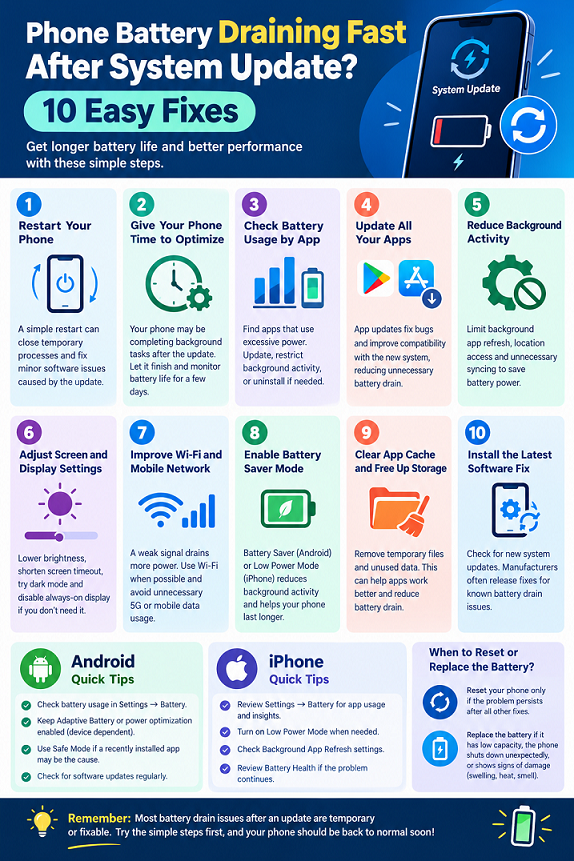
10 Ways to Fix Phone Battery Drain After a System Update
The following methods start with simple, low-risk solutions and gradually move toward more advanced troubleshooting. You do not need to apply every change immediately. Try one or two steps, observe your battery usage, and continue if the problem remains.
1. Restart Your Phone
Restarting your phone is one of the easiest ways to begin troubleshooting battery drain. A restart closes temporary processes, refreshes system services, and can resolve minor software problems that appear after an update. Although it will not repair a defective battery or fix every software bug, it is a sensible first step before making more complicated changes.
On most Android phones, press and hold the power button or the appropriate power-button combination, then select Restart. On an iPhone, use the relevant side-button and volume-button combination, or open the power-off controls in Settings where available. Allow the phone to shut down completely and start again. Once it has restarted, use it normally and check whether the battery percentage falls at a more reasonable rate. If the problem continues, move to the next step rather than repeatedly restarting the device.
2. Give Your Phone Time to Optimize
If the battery drain started immediately after the update, patience may be part of the solution. Your device could still be completing background optimization, processing files, or synchronizing information. Google’s Pixel support guidance says that some additional battery consumption after a software update is expected and recommends seeking further help if unusual drain continues after a few days.
During this period, keep your phone updated, use a reliable charger, and avoid unnecessary heavy tasks such as long gaming sessions or extended video recording if the device becomes warm. You do not need to leave the phone connected to a charger continuously or repeatedly drain the battery to zero. Instead, charge it as needed and monitor its performance during normal use. If the battery continues draining rapidly after several days, treat the problem as an ongoing issue and investigate applications, settings, and possible software bugs.
3. Check Battery Usage by App
Checking battery usage is one of the most useful ways to discover why your phone battery drains so quickly. Rather than guessing, look for applications that consume unusually high amounts of power compared with how often you use them.
On Android, open Settings → Battery → Battery usage or a similarly named option. The exact path varies by manufacturer and Android version. On an iPhone, open Settings → Battery and examine the daily usage information and app activity.
Look for applications with high background activity, unusually heavy battery consumption, or unexpected increases since the update. A video application may legitimately consume substantial power during extended viewing, so high usage alone does not prove that an app is malfunctioning. However, an application that uses considerable energy while you are barely using it deserves closer attention.
If you find a likely culprit, update it, restrict its background activity where appropriate, or uninstall it if you no longer need it. Check battery usage again after making the change. This approach is more effective than installing a third-party battery optimizer that may add its own background processes.
4. Update All Your Apps
An operating system update can introduce changes that require application developers to adjust their software. If an app has compatibility problems, it may crash repeatedly, synchronize inefficiently, or consume more processor power than expected. Updating your installed apps can resolve known bugs and improve compatibility with the new system.
On Android, open the Google Play Store, visit your profile, and look for the app-management section to check available updates. On an iPhone, open the App Store, select your account profile, and review available app updates. Install updates from official sources and restart your device if an application or manufacturer recommends doing so.
Pay particular attention to messaging apps, browsers, social media platforms, cloud storage tools, and applications you installed shortly before the battery problem appeared. If only one app is responsible, updating or temporarily removing it may produce a noticeable improvement. Remember that app updates can take time and energy to install, so assess battery performance after the update process has finished.
5. Reduce Background Activity
Many applications perform useful work even when they are not visible on your screen. Email clients retrieve messages, cloud services synchronize files, and social media apps refresh content. However, too much background activity can reduce battery life, particularly when an app repeatedly performs tasks that are not immediately necessary.
On Android, open the relevant app’s information page and look for battery usage or background activity controls. Depending on your device, you may be able to select an optimized or restricted battery setting. Be careful with messaging, navigation, security, and work applications because restricting them may delay notifications or interfere with important functions.
On iPhone, review Settings → General → Background App Refresh and disable background refreshing for applications that do not need it. You can also review location permissions and allow location access only when an application genuinely needs it. These changes do not require you to disable every background service. The goal is to keep essential features working while reducing unnecessary activity. After adjusting the settings, monitor battery usage to see whether the changes help.
6. Adjust Screen and Display Settings
Your screen is another potential source of battery drain. High brightness, long screen-on periods, and certain display features can consume considerable energy during everyday use. If an update changed your display preferences, your phone might now use more power even though your habits have stayed the same.
Start by reducing brightness to a comfortable level and enabling automatic brightness if it works well in your environment. Shorten the screen timeout on Android or adjust Auto-Lock on your iPhone so the display turns off when you are finished using it. If your phone has an always-on display, consider disabling it temporarily to test whether battery life improves.
You can also reduce unnecessary animations or use a lower refresh-rate setting if your device offers that option. Dark mode may help on phones with OLED displays, particularly when much of the screen is black, although the savings depend on the display technology and how you use your phone. Apple’s battery guidance specifically identifies high brightness as a factor that can reduce battery life.
7. Improve Wi-Fi and Mobile Network Settings
A weak mobile signal can cause your phone to work harder to maintain a connection. This is especially noticeable in buildings with poor reception, underground spaces, remote locations, or areas where the network switches frequently between connection types. If your phone is constantly searching for a signal, battery consumption may increase even when you are not actively using it.
Whenever possible, connect to a reliable Wi-Fi network. If your phone has a poor cellular signal indoors, compare battery performance in a location with better reception. You can also disable mobile data temporarily when you do not need it, although doing so may interrupt internet access when Wi-Fi is unavailable.
If your phone supports 5G and the signal is weak, check whether your network settings offer an automatic or LTE option. On an iPhone, the available controls depend on the carrier and device configuration. Do not disable essential connectivity permanently just to save a small amount of energy. Instead, identify whether poor reception or repeated network switching is contributing to the problem. Apple’s battery guidance also identifies low cellular coverage as a possible cause of increased power use.
8. Enable Battery Saver Mode
Battery Saver on Android and Low Power Mode on iPhone can help your phone last longer when the charge is dropping quickly. These features reduce selected background activities, limit some visual effects, or adjust how certain services operate. They are particularly useful while you are diagnosing a battery problem or need your phone to last until you can recharge it.
On Android, open Settings and look for Battery Saver, Power Saving, or a similarly named feature. On an iPhone, open Settings, select Battery, and enable Low Power Mode where available. Some newer iPhone models also offer additional adaptive power-management features, depending on the model and software version.
Keep in mind that power-saving modes can delay email synchronization, reduce background updates, or change performance behavior. They are useful tools, but they do not necessarily fix the underlying cause of excessive battery drain. If battery life returns to normal only when Battery Saver is enabled, continue investigating background activity, display settings, network reception, and app behavior.
9. Clear App Cache and Free Up Storage
Corrupted temporary files or an application experiencing problems after an update may contribute to abnormal behavior. Clearing an app’s cache can sometimes help, especially if the app is repeatedly crashing, loading slowly, or consuming unusual amounts of power. However, clearing the cache is not a universal battery fix, and you should not delete data indiscriminately.
On Android, open Settings → Apps → select the relevant app → Storage and cache → Clear cache, if those options are available. Menu names differ between devices. Avoid selecting Clear storage or Clear data unless you understand the consequences, because doing so may remove local settings, downloaded content, or account information.
On iPhone, there is no universal system-wide button for clearing every app’s cache. Depending on the app, you may need to use its internal settings, remove downloaded content, or reinstall it. Before deleting an app, check whether its important information is synchronized or backed up.
Freeing storage can also help when your device is nearly full, although low storage is not necessarily the reason for battery drain. Remove unnecessary downloads and large files safely, then check whether the phone behaves more normally.
10. Install the Latest Software Fix
Sometimes the problem is a genuine software bug introduced by an operating system update. If many users with the same device and software version report unusual battery drain, the manufacturer may investigate the issue and release a corrective update. However, do not assume that every battery problem is caused by a widespread bug.
Open your phone’s system update settings and check whether another update is available. On Android, this may be under Settings → System → Software updates, Settings → Software update, or a similar menu. On an iPhone, check Settings → General → Software Update.
Read the release notes when available, and install updates through the official system interface. Back up important data and ensure that your phone has sufficient battery charge or access to a reliable charger before beginning. If no fix is available, check the manufacturer’s official support page for your specific device and software version. Avoid installing unofficial firmware or random system files from untrusted websites, as these can create additional security and performance problems.

How to Fix Battery Drain on Android and iPhone
Although many troubleshooting steps work across both platforms, Android and iPhone offer different settings and diagnostic tools. Using the appropriate controls for your device can save time and help you avoid changing settings that do not exist on your phone.
Android Battery Drain Fix
Android phones from Google, Samsung, OnePlus, Xiaomi, and other manufacturers can have different menu layouts. Start by opening your battery settings and checking which apps and system processes consume the most power. If an application uses an unusual amount of battery in the background, update it or adjust its battery permissions.
On supported Android devices, keep Adaptive Battery or the manufacturer’s equivalent optimization feature enabled. Google recommends keeping Adaptive Battery and battery optimization active on Pixel phones because the system uses usage patterns to help manage power.
Samsung Galaxy users can also review the device’s battery and background-usage controls. Samsung’s support guidance identifies background applications, network conditions, and battery condition as factors that can affect battery life.
If the issue persists, test whether a recently installed app is responsible. Some Android phones offer Safe Mode, which temporarily disables downloaded apps. The steps to enter Safe Mode vary by manufacturer, so consult the official instructions for your model. If the battery behaves normally in Safe Mode, a downloaded application may be contributing to the issue.
iPhone Battery Drain Fix
On an iPhone, begin with Settings → Battery. Review app usage, background activity, and any available insights explaining why battery performance has changed. On supported iOS versions, you may see an indication that the system is still completing an update or device-setup activity. If so, allow those tasks to finish and monitor performance for a few days.
Next, check Battery Health or the battery-health information available for your iPhone model. If the battery has significantly reduced capacity, a software update may simply make an existing limitation more noticeable. Review Background App Refresh, location permissions, display brightness, and network reception as well.
If an application suddenly consumes an unusual amount of power, update it or temporarily remove it after protecting any important data. If the problem began immediately after updating iOS and remains severe, check Apple’s official support guidance or contact Apple Support. Avoid erasing your iPhone as the first troubleshooting step, because a reset can remove personal data and may not resolve a hardware problem.
Android vs. iPhone: Which Fix Should You Try First?
| Troubleshooting task | Android | iPhone |
| Check battery usage | Settings → Battery | Settings → Battery |
| Reduce background activity | App battery controls | Background App Refresh and app settings |
| Enable power saving | Battery Saver or Power Saving | Low Power Mode |
| Update applications | Google Play Store or official app store | Apple App Store |
| Check system updates | Software Update settings | General → Software Update |
| Check battery condition | Device-specific battery diagnostics | Battery Health settings, where available |
| Test app-related problems | Safe Mode on supported devices | Review app usage and troubleshoot individual apps |
Menu names and available features vary by model and software version. Use the manufacturer’s instructions if you cannot find a particular setting.
When Should You Reset Your Phone or Replace the Battery?
A factory reset should be a last resort, not the first solution to battery drain after an update. Resetting removes personal information and applications, and you will need to restore your data and configure the device again. Before considering this step, check battery usage, update your apps, review background activity, restart your phone, and confirm that the problem persists after the initial optimization period.
If you decide to perform a factory reset, create and verify a backup first. Make sure you know the passwords and account credentials needed to set up the device again. After the reset, test the phone before reinstalling every application. If battery life is normal initially but becomes poor after restoring a particular app, that app may be contributing to the problem. If the drain remains severe even after a clean setup, contact the manufacturer or an authorized repair provider.
Battery replacement may be appropriate when the battery has deteriorated, the phone shuts down unexpectedly, or the manufacturer identifies a battery fault. Software updates cannot restore capacity lost through normal battery aging. If your phone becomes unusually hot, the battery swells, the back cover lifts, or you notice a chemical smell, stop using and charging the device and seek professional assistance. Never press a swollen battery back into place or attempt to puncture it.
The right solution depends on the evidence. A phone that temporarily drains faster after an update may only need time to optimize. A phone that loses charge rapidly for weeks may have an application problem, a persistent software bug, poor reception, or a failing battery. Identifying the cause is more useful than repeatedly applying generic battery-saving tricks.
Conclusion
If your phone battery is draining fast after a system update, start with the simplest fixes first. Restart your device, allow background optimization to finish, and check battery usage to identify apps or system activities consuming excessive power. Then update your applications, reduce unnecessary background activity, adjust your display settings, and review your network connection. Battery Saver or Low Power Mode can help while you investigate, but persistent drain may require a software fix or professional battery assessment.
Avoid factory resets, battery-cleaning apps, and unnecessary setting changes until you have checked the basic causes. Most importantly, do not assume that every post-update battery problem means your phone is damaged. Give your device a short period to settle, monitor its performance, and seek manufacturer support if the problem remains severe or the phone shows signs of battery damage.
Frequently Asked Questions (FAQs)
1. Why is my phone battery draining so fast after a system update?
Your phone may be completing background optimization, synchronizing files, or adjusting applications to the new software. An incompatible app, changed settings, poor network reception, or an aging battery can also contribute. If the drain continues after a few days, check battery usage and troubleshoot the applications or settings consuming the most power.
2. How long does battery drain last after a software update?
There is no universal time frame because it depends on the device, update, and amount of background work required. Some phones return to normal within a short period, while others may take several days to settle. If battery drain remains unusually high after a few days, investigate the cause instead of assuming it will resolve itself.
3. Should I factory reset my phone if the battery drains after an update?
Not immediately. First, restart your phone, update your apps, check battery usage, and review background activity. A factory reset may help if a persistent software or application problem remains, but it deletes local data and may not fix a defective battery. Back up your important information before attempting one.
4. Does a software update damage phone battery health?
A software update does not automatically mean your battery has been physically damaged. Updates can temporarily increase power consumption, expose existing battery limitations, or introduce software bugs. If your phone continues losing charge rapidly, check its battery-health information where available and contact the manufacturer if necessary.
5. What is the fastest way to stop battery drain after an update?
Start by checking battery usage to identify the biggest power-consuming application or activity. Restart your phone, enable Battery Saver or Low Power Mode, and restrict unnecessary background activity. If the device is still completing update-related tasks, allow them to finish. Persistent excessive drain may require a software correction or professional diagnosis.


1 Comment
Интересно. Экспорт презентации: PPTOnline /. PPTOnline