






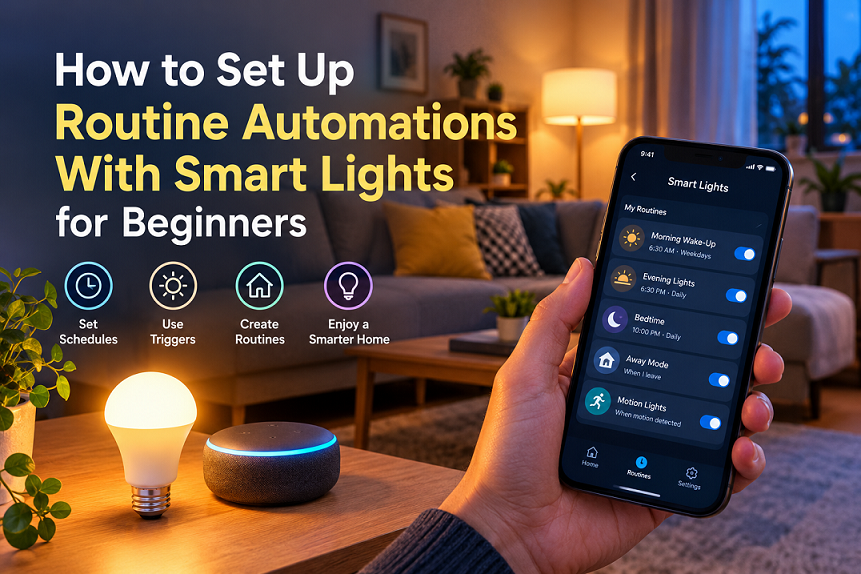
Smart lighting is one of the easiest ways to make your home more convenient without spending money on a complicated smart home system. Imagine waking up to a softly illuminated bedroom, returning home to welcoming lights, and watching your living room lights switch off automatically when bedtime arrives. Instead of remembering every switch throughout the day, you can let your smart lights follow a schedule that fits your lifestyle.
The good news is that you do not need advanced technical knowledge to get started. With a compatible smart bulb, a smartphone, and an app, you can create useful lighting routines in just a few steps. Platforms such as Google Home, Amazon Alexa, and Apple Home support different types of smart home control and automation, although the features available depend on your devices and setup.
In this beginner-friendly guide, you will learn how smart light automation work, what equipment you need, how to create your first routine, and how to troubleshoot common problems. You will also discover practical automation ideas that can make everyday life easier while helping you manage unnecessary lighting.
What Are Smart Light Automation?
A smart light automation is a rule that tells a compatible light when to turn on, turn off, dim, or change its color automatically. Instead of controlling the light manually every time, you decide what should trigger an action and what the light should do in response. For example, you could schedule your bedroom light to turn on at 7:00 AM on weekdays or have your porch light switch on around sunset. Once you save the automation, the system handles the task according to your settings.
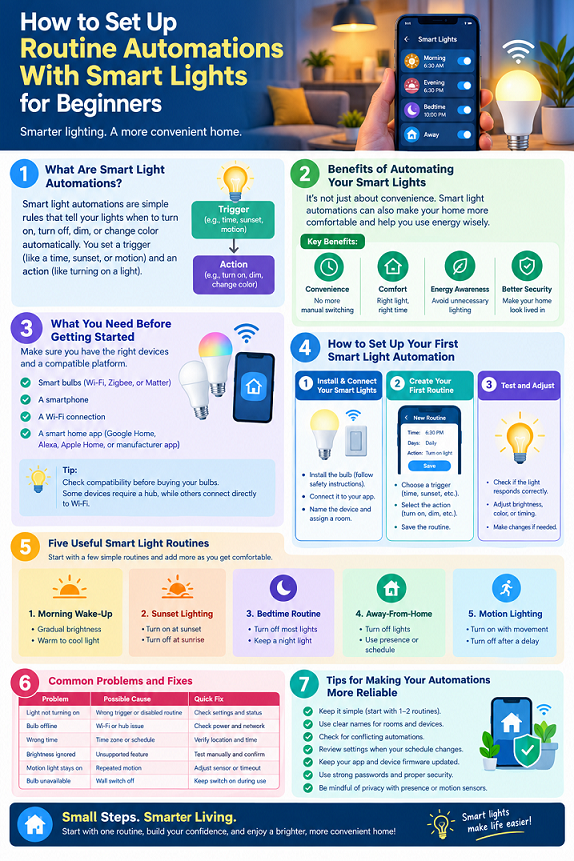
Think of an automation as a simple instruction: when something happens, do something else. The first part is called a trigger, while the second part is an action. A trigger might be a particular time, sunset, a motion sensor detecting movement, or a supported presence event. An action could be turning on one bulb, adjusting the brightness of several lights, or switching off an entire room. Depending on the platform, you may also add conditions, such as running an automation only after dark or only when someone is home. Google Home documents time-based, sunrise and sunset, device-based, and other supported routine starters.
It is useful to understand the difference between a routine and an automation. A routine can be started by a voice command, a tap in an app, or a supported event, while an automation generally emphasizes actions triggered by time, device status, sensors, or household conditions. In everyday use, the terms often overlap. For a beginner, the important point is that you can make your lighting respond to your daily habits without having to operate every switch yourself.
Benefits of Automating Your Smart Lights
Convenience, Comfort, and Energy Awareness
The biggest benefit of smart light automation is convenience. You can create a morning routine that brightens your bedroom, an evening routine that illuminates the living room, and a bedtime routine that turns off selected lights. These small changes can remove repetitive tasks from your day, particularly when you have several rooms to manage. You can also create a single scene that adjusts multiple compatible lights together, instead of opening the app and changing each bulb individually.
Smart lighting can make a room feel more comfortable, too. Bright, neutral lighting may be useful when you are cleaning or working, while dimmer, warmer lighting can create a relaxing atmosphere in the evening. If your bulbs support adjustable color temperature, you can experiment with different settings for different activities. Some smart home platforms also support gradual wake-up and bedtime lighting, helping you create a gentler transition between light and darkness.
Another advantage is better control over when lights remain switched on. For example, you can schedule outdoor lights to turn off after sunrise or use a motion sensor to illuminate a hallway only when movement is detected. These settings may reduce unnecessary operating time, although the actual savings depend on your bulb type, electricity rates, usage, and automation settings. Smart lights are not automatically energy-saving in every situation; the real benefit comes from using them thoughtfully.
What You Need Before Getting Started
Choosing Compatible Smart Bulbs and a Control Platform
Before creating a routine, make sure you have the necessary equipment. Most beginners can start with one compatible smart bulb and a smartphone. You may also need a Wi-Fi connection, a manufacturer-specific app, or a compatible smart home hub, depending on the bulb and the features you want to use. Some devices connect directly through Wi-Fi, while others use technologies such as Bluetooth, Zigbee, Thread, or Matter through a supported setup.
Compatibility is particularly important if you want to control your lights from a single smart home app. Check the product packaging and official documentation before buying a bulb. Confirm that it works with your chosen platform, whether that is Google Home, Amazon Alexa, Apple Home, or the manufacturer’s own application. Matter-certified devices can work across supported smart home platforms, but the exact experience still depends on the device, controller, and features each platform supports.
Here is a simple comparison to help you choose your starting point.
| Setup option | Best for | What to consider |
|---|---|---|
| Manufacturer’s lighting app | Beginners starting with one brand | May offer the most direct access to bulb features |
| Google Home | People using compatible Google Home devices | Check device compatibility and available routine triggers |
| Amazon Alexa | Homes using compatible Echo devices or the Alexa app | Routine options depend on connected devices |
| Apple Home | People using compatible Apple devices and accessories | Some automations require a home hub |
| Matter-compatible setup | People who want cross-platform flexibility | Confirm support for the features you plan to use |
How to Set Up Your First Smart Light Automation
Step 1 — Install and Connect Your Smart Lights
Start with one bulb in a room where automation would be useful, such as your bedroom or living room. Switch off the power before installing the bulb, follow the manufacturer’s safety instructions, and then restore power when installation is complete. Open the manufacturer’s app and follow its instructions to discover and connect the bulb. Depending on the model, you might need to connect your phone to a compatible Wi-Fi network, scan a setup code, or use a hub.
Once the bulb appears in the app, give it a clear name. Names such as “Bedroom Lamp,” “Kitchen Light,” and “Front Porch” are much easier to recognize than generic labels such as “Bulb 1.” If your platform supports rooms, assign the bulb to the correct room as well. This makes it easier to control multiple lights together later.
Before you create a schedule, test the basic controls. Turn the light on and off from the app, adjust its brightness, and change its color temperature if those options are available. If you intend to use Google Home, Alexa, or Apple Home, link or add the bulb according to the platform’s official instructions. Verify that you can control it from the chosen app before moving on to automation.
One important detail: many smart bulbs need their wall switch to remain on so they can stay connected and receive commands. If someone switches off the physical power, the bulb may become unavailable to your automation. Keep this limitation in mind when choosing a location and explaining the setup to other household members.
Step 2 — Create Your First Routine
For your first routine, choose a task that happens regularly and has a clear benefit. A simple evening schedule is a good starting point because you can easily check whether it works. For example, you might want your living room lamp to turn on at 6:30 PM every day.
In a compatible smart home app, open the routines or automation section and choose the option to create a new routine. The exact labels vary by app, but the basic process is similar: choose a trigger, select an action, identify the light, and save the settings. In the Google Home app, routines use starters and actions; Alexa also lets you select an event and add one or more actions.
Use the following example as a template:
- Routine name: Evening Living Room Light
- Trigger: Every day at 6:30 PM
- Action: Turn on the living room lamp
- Optional setting: Set brightness to 60%, if supported
Choose the correct days and time carefully. If you prefer a routine that follows seasonal daylight changes, look for a supported sunset trigger instead of a fixed clock time. You may also be able to apply an offset, such as starting 15 minutes before sunset, depending on the platform.
After selecting the trigger and action, save the routine. Some apps offer a test option, while others require you to wait for the next scheduled run or manually activate the routine. If the routine does not start immediately, do not assume it has failed; first check the trigger and test the light directly.
Step 3 — Test and Adjust Your Settings
Testing is an essential part of setting up reliable smart lighting. A routine may look correct in the app but still fail because the wrong light was selected, the bulb lost its connection, or a required hub is offline. If your app offers a test feature, use it. Otherwise, temporarily choose a convenient trigger or run the routine manually where supported, then restore the intended schedule.
Check the result from the light itself. Does it switch on at the correct brightness? Does it respond at the expected time? If you selected several lights, did every compatible bulb react? Make one change at a time so you can identify the cause if something goes wrong. For example, if the light switches on but is too bright, adjust the brightness action rather than rebuilding the entire routine.
Also consider what happens when your plans change. A fixed schedule can be convenient on workdays but less useful on weekends. You might create separate weekday and weekend routines, or use an occupancy or presence condition if your platform supports it and you are comfortable with the privacy implications. Avoid adding lots of conditions at the beginning. A simple automation that works consistently is more valuable than a complicated one that is difficult to troubleshoot.
Once your first routine works for several days, you can expand it to another room or add a second action. That gradual approach helps you learn how your system behaves before you depend on more complex automation.
Five Useful Smart Light Routines for Beginners
You do not need dozens of automation to make your home feel smarter. Start with a few routines that solve everyday problems, then add more as you become comfortable with the controls. The following examples work as starting ideas, although the exact features available depend on your bulbs and smart home platform.
1. Morning Wake-Up Routine
A morning routine can make getting out of bed feel less abrupt. Instead of switching on a bright light immediately, schedule your bedroom lamp to turn on at a low brightness and increase later if your platform supports gradual changes. For example, you could begin with a dim light at 6:30 AM and reach a brighter setting by 6:45 AM. If your bulb supports adjustable color temperature, you can also experiment with a warmer setting at first and a cooler setting when you start getting ready.
To build this routine, select a time-based trigger, choose the days you want it to run, and add the appropriate lighting actions. You might use a different schedule on weekends so that your lights do not wake you unnecessarily. Remember that a light schedule cannot guarantee better sleep or replace healthy sleep habits, but it can help you create a consistent morning environment.
2. Sunset Lighting Routine
An evening routine can turn on your entrance or living room lights when daylight fades. This is particularly useful if you arrive home after sunset or prefer not to enter a dark room. Rather than setting a fixed time that becomes unsuitable as the seasons change, choose a sunset trigger if your platform offers one.
For example, configure the porch light to switch on around sunset and turn off at sunrise. You can also set the living room lights to a comfortable brightness when evening begins. Google Home specifically supports lighting routines based on sunset and sunrise, subject to device and feature compatibility.
If you do not need outdoor lighting throughout the night, consider a separate rule that switches it off at a chosen time. This provides more control than leaving every light on until morning.
3. Bedtime Routine
A bedtime routine helps you finish the day without checking every room individually. You could create a routine named “Good Night” that switches off the living room, kitchen, and bedroom lights while leaving a hallway night-light on if needed. With compatible color-changing or dimmable bulbs, you could also reduce brightness before turning the main lights off.
Open your smart home app, create a new routine, and select a convenient trigger. This could be a scheduled time, a supported voice command, or a button in the app. Add the lighting actions you want, then test each one. Apple Home, for example, supports scenes that control multiple compatible accessories together, which can be useful for a coordinated bedtime setup.
Avoid switching off lights that someone else in the household still needs. If different people follow different schedules, create separate room controls or routines rather than assuming everyone is ready for bed at the same time.
4. Away-From-Home Routine
A simple away routine can help prevent lights from being left on when you leave home. Depending on your smart home platform, you may be able to use a supported presence trigger or create a routine that turns off selected lights when you leave. Alternatively, you can schedule lights to switch off shortly after your usual departure time.
For instance, you could configure your bedroom and kitchen lights to turn off on weekday mornings while leaving the porch light under a separate sunset schedule. This keeps unrelated routines from interfering with one another.
Some systems also support lighting schedules intended to make an empty home appear occupied. However, lights alone are not a security system, and a routine should not be treated as a guarantee of protection. Google cautions that routines are for convenience rather than safety-critical use cases.
5. Motion-Activated Hallway Lighting
Motion-activated lighting is helpful in hallways, entryways, and other places where you need light for a short period. With a compatible motion sensor and smart lighting setup, you can create a rule that switches on a light when movement is detected. You might then configure it to turn off after a period without further activity, if your system supports that behavior.
For example, set the hallway light to turn on at 40% brightness when motion is detected at night. This can provide enough light to walk through the space without illuminating the entire home. During the daytime, you could disable the automation or use a condition so that the light does not turn on unnecessarily.
Test the sensor’s detection range before relying on the routine. Doors, furniture, pets, and the sensor’s placement can affect how well it detects movement. Also, avoid making a motion-triggered light the only illumination available on stairs or in locations where a failed sensor could create a hazard.
Common Problems and How to Fix Them
Even a simple smart lighting setup can occasionally behave unexpectedly. The good news is that most beginner problems can be narrowed down by checking the connection, the routine settings, and the bulb’s power supply in a consistent order.
| Problem | Possible cause | What to try |
|---|---|---|
| Light does not turn on automatically | Incorrect trigger or disabled routine | Check the schedule, selected days, and automation status |
| Bulb appears offline | Wi-Fi or hub connection issue | Check power, network connectivity, and hub status |
| Routine runs at the wrong time | Incorrect time zone or schedule | Review the home’s location and time settings |
| Light turns on but ignores brightness | Unsupported action or bulb limitation | Test brightness manually and confirm feature support |
| Motion light stays on | Repeated motion or incorrect timeout settings | Adjust the sensor placement and supported off-delay |
| Bulb becomes unavailable after manual switching | Wall switch cuts power | Restore power and keep the switch on during normal smart operation |
Check Your Internet and Device Connection
Some smart lights depend on an internet connection or cloud service, while others can perform certain tasks locally through a hub or supported controller. As a result, the behavior during an internet outage varies by product. Check your bulb’s documentation to understand which features require internet access and which may continue working locally.
If a bulb becomes unavailable, verify that it has power before changing any routine settings. Next, check the app, network, and hub if applicable. Restarting a device may help, but avoid repeatedly resetting it to factory settings before trying simpler troubleshooting steps.
Check for Conflicting Automation
Two routines can sometimes control the same bulb in different ways. For example, one routine might turn a lamp on at 7:00 PM, while another turns it off at 7:05 PM. The result may look like a malfunction even though both routines are working as configured.
Review your automation list and check for overlapping schedules, scenes, or motion rules. Give each routine a clear name, such as “Evening Lights On” and “Bedtime Lights Off.” If two routines serve the same purpose, consider combining or simplifying them.
Tips for Making Your Automation More Reliable
The easiest way to maintain a smart lighting system is to keep it simple. Start with one or two routines and let them run long enough to reveal any problems. When you add another automation, make sure it has a clear purpose and does not conflict with an existing rule.
Use meaningful room and device names, too. A name such as “Kitchen Ceiling Light” makes it easier to identify the correct device when you create a routine. Grouping compatible lights by room can simplify control, particularly when you want several bulbs to respond to the same trigger.
It is also worth reviewing your automation when your schedule changes. A weekday wake-up routine may not suit a holiday, while a sunset routine may be more useful than a fixed evening schedule. Check the time, days, conditions, and actions whenever something behaves differently than expected.
Finally, keep software and device firmware updated according to the manufacturer’s guidance. Use strong passwords and appropriate account security for your smart home services. If you use presence detection or other household sensors, review the privacy settings and make sure everyone in the home understands how shared automation work.

Conclusion
Learning how to set up routine automation with smart lights for beginners is easier when you start with a practical goal. Choose a compatible bulb, connect it to the appropriate app, create one simple schedule, and test it before adding more features. From morning wake-up lighting to sunset schedules and bedtime scenes, even a few carefully planned routines can make everyday lighting more convenient.
As you gain confidence, explore motion sensors, room groups, brightness adjustments, and supported presence triggers. Keep your setup easy to understand, check for conflicting rules, and remember that automation features differ between devices and platforms. You do not need a fully automated house overnight. A single reliable routine is a great first step toward a smarter, more comfortable home.
Frequently Asked Questions
1. Can I automate smart lights without a smart speaker?
Yes. Many compatible smart bulbs can be scheduled through their manufacturer’s app or a supported smart home app without a separate smart speaker. However, some automation require a compatible hub, controller, or internet connection. Check your specific bulb’s requirements before setting everything up.
2. Do smart lights work when the internet is down?
It depends on the product and how the automation is configured. Some cloud-dependent functions may stop working during an outage, while certain local controls or hub-based automation may continue to operate. Check the manufacturer’s documentation to understand what remains available offline.
3. Can I set smart lights to turn on automatically at sunset?
Yes, provided your bulb and control platform support sunset-based routines. Choose sunset as the trigger, select the lights, and specify the desired action. Some systems also let you adjust the trigger to occur a set number of minutes before or after sunset.
4. How many smart light automations should a beginner create?
Start with one or two useful routines, such as an evening schedule and a bedtime routine. Once you know they work consistently, add motion-triggered or presence-based automation if you need them. There is no ideal number; the best setup is one that makes your daily life easier without becoming difficult to manage.
5. Do smart light automations save electricity?
They can help reduce unnecessary lighting by switching lights off when they are not needed or limiting how long they remain on. However, actual savings depend on the bulbs, their power consumption, how often they are used, and the schedules you create. A smart bulb that stays on longer than an ordinary bulb might not save energy simply because it is automated.


