

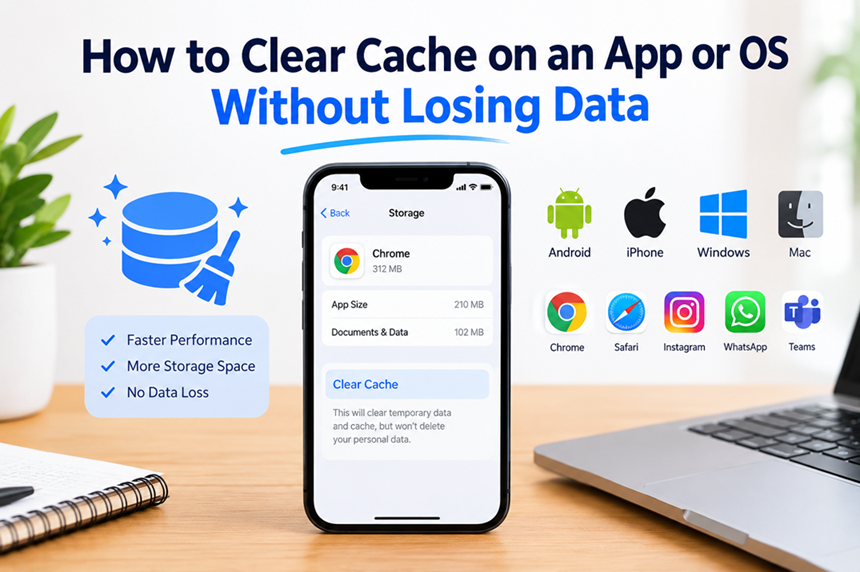
Have you ever opened an app and noticed that it is suddenly slow, freezing, crashing, or displaying outdated information? Before deleting the app, resetting your phone, or worrying that something is seriously wrong, there is a simple troubleshooting step worth trying: clearing the cache. Cache files are temporary pieces of information that apps and operating systems store so they can load content more quickly the next time you use them. Over time, however, cached files can become outdated, corrupted, or unnecessarily large. The good news is that clearing a cache is generally very different from deleting your personal data. On Android, for example, Google specifically distinguishes between Clear cache, which removes temporary data, and Clear storage, which permanently removes app data.
The exact process depends on whether you are using Android, iPhone, Windows, Mac, or a particular application. Some platforms provide a direct Clear Cache button, while others manage cached files automatically or use options such as offloading an app. This guide explains how to clear cache safely while protecting your important files, settings, documents, photos, and other personal information. It also explains the important difference between cache, cookies, app data, and temporary files, because choosing the wrong option can produce a very different result from what you intended.
What Is Cache and Why Does It Matter?
Cache is temporary data stored by software to make frequently used content easier and faster to access. Imagine a restaurant kitchen that keeps commonly used ingredients close to the cooking station instead of sending someone to the storeroom every time an order arrives. An app works in a similar way. It may temporarily store images, thumbnails, website components, preferences, previews, or other reusable information so that it does not have to download or recreate everything from scratch each time you open it. This can improve responsiveness and reduce repeated network activity, which is why almost every modern operating system and many individual apps use some form of caching.
The problem is that cached information does not always remain useful forever. An application may receive an update, a website may change its files, or a previously cached file may become corrupted. In those situations, the app can behave strangely because it is trying to use old information alongside newer information. Clearing the cache gives the application a clean set of temporary files to work with. Google explains that clearing an Android app’s cache deletes temporary data, although the app may take slightly longer to open the next time because that temporary information needs to be recreated.
Cache vs. App Data
The most important distinction to understand before pressing a button is the difference between cached data and app data. Cached data is normally temporary and can generally be recreated by the application. App data, on the other hand, can include information such as locally stored settings, accounts, preferences, saved progress, downloaded content, databases, or other information maintained by the app. Deleting app data is therefore much more disruptive than clearing a cache.
Android makes this distinction particularly clear. Google states that Clear cache deletes temporary data, while Clear storage permanently deletes all app data. Because Android settings can vary between manufacturers and versions, the wording and menu locations may look different on Samsung, Xiaoping, OnePlus, Motorola, Google Pixel, and other devices, but the underlying distinction is important.
Is It Safe to Clear Cache Without Losing Data?
In most cases, yes. Clearing cache is specifically designed to remove temporary files rather than your core personal information. You are not normally deleting your photos, videos, contacts, documents, or the application itself when you select an ordinary cache-clearing option. The app may simply rebuild some of its temporary files after you launch it again. That is why clearing cache is commonly used as a first troubleshooting step when an application is behaving unexpectedly.
However, “cache” does not mean exactly the same thing on every platform. Some apps combine cached information with downloaded content, and some operating systems do not expose a simple cache-clearing button for every application. You should therefore read the option carefully before confirming it. If the button says Clear storage, Clear data, Delete app, or something similar, stop and check what it will remove before proceeding.
A useful rule is simple: when your goal is to remove temporary files, choose the option explicitly labeled Cache whenever it is available. Do not choose a broader reset option just because it appears next to the cache setting.
How to Clear Cache on Android Without Losing Data
Android is one of the easiest platforms for clearing an individual app’s cache because many Android devices provide a dedicated Clear cache option. The exact path can vary depending on the manufacturer, Android version, and device interface. Google notes that Android settings can vary by device, so your menus may not look exactly like someone Elsie’s phone.
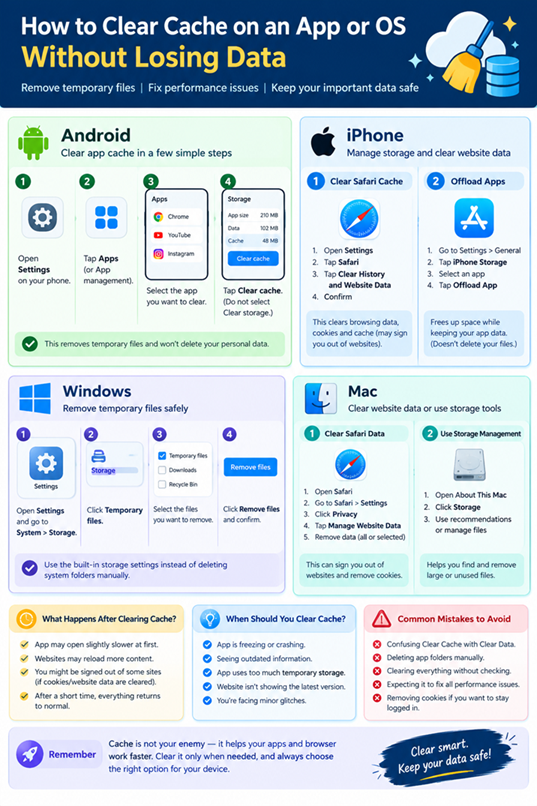
A common process is to open Settings, select Apps, find the application causing problems, open its information page, and then select Storage or Storage & cache. From there, you may see separate options for Clear cache and Clear storage. Choose Clear cache if you only want to remove temporary files.
Step-by-Step Android Cache Clearing
Start by opening the Settings application on your Android phone. Look for Apps, Applications, or App management, depending on your manufacturer. Select the app you want to troubleshoot, then open its storage information. The screen should show how much space the application, its data, and its cached files are using.
Tap Clear cache and wait for the cache size to decrease or reset. Do not tap Clear storage unless you deliberately want to reset the application’s stored data. Google confirms that clearing cache removes temporary data, while clearing storage permanently deletes app data.
After clearing the cache, reopen the application and test the problem you were experiencing. The first launch may take slightly longer because the app has to recreate some temporary files. That is normal and does not necessarily mean the process failed.
Clear Cache vs. Clear Storage
This is one of the most important distinctions in the entire process. Clear cache is normally a low-risk maintenance step, while Clear storage is effectively much closer to resetting the application. Google specifically warns that clearing storage permanently deletes app data.
| Option | What it generally does | Risk to personal app data |
| Clear Cache | Removes temporary cached files | Low |
| Clear Storage/Data | Removes stored app data | High |
| Uninstall App | Removes the application and associated local data | High |
| Restart App | Closes and reopens the application | Very low |
| Restart Device | Reboots the operating system | Very low |
If an app is crashing or displaying outdated information, start with the least destructive option. Try restarting the app, then clearing its cache, before considering more aggressive troubleshooting.
How to Clear Cache on iPhone Without Deleting Personal Data
iPhone handles application storage differently from Android. You generally will not find a universal Clear Cache button for every installed app. Instead, iOS manages temporary files automatically and provides several tools for dealing with storage and browser data. Apple explains that iPhone storage settings can show how much space apps use and that cached or temporary data may not always appear as a separate amount.
For Safari, Apple provides dedicated ways to clear browsing history and website data. Be aware that clearing Safari data is not identical to clearing a single app cache on Android. Depending on what you choose, you may remove browsing history, cookies, website permissions, and other stored website information.
Clear Safari Cache
To clear Safari’s browsing data on a modern iPhone, open Safari, access the browsing history controls, select Clear, and choose the desired time frame. Apple explains that clearing Safari history and data can remove website history, recent searches, cookies, and certain website permissions.
This process does not delete your photographs, messages, contacts, or documents stored elsewhere on your iPhone. However, websites may behave differently afterward, and you may need to sign in again to some websites depending on which website data is removed. If you are trying to solve one specific website problem, clearing all browsing data may be more aggressive than necessary.
Offload Apps Instead of Deleting Them
If an iPhone application is consuming too much storage, Offload App can be a useful alternative to deleting it. Apple says that offloading an app frees the storage used by the app while keeping its documents and data. This is different from deleting the app, which removes the application and its related data.
You can find these controls by opening Settings > General > iPhone Storage, selecting an application, and reviewing the available options. Offloading is particularly useful when you want to free up application storage without intentionally removing the app’s documents and data. It is not exactly the same thing as clearing a cache, but it can be a safer storage-management option when iOS does not provide a direct cache button.
How to Clear Cache on Windows
Windows computers accumulate temporary files through applications, browsers, updates, installers, and normal system activity. These files can sometimes consume substantial storage, although deleting them is not automatically a solution for every performance problem. Windows provides built-in storage management features that can help you identify and remove temporary files without manually deleting important system folders.
A practical approach is to open Settings, go to System, and then open Storage. From there, Windows can show categories of storage usage and provide options for managing temporary files. The exact interface can differ between Windows releases, so it is better to use the built-in Storage settings than randomly deleting folders from the Windows directory.
Clear Temporary Files Safely
Before removing temporary files, review what Windows has selected. Temporary files can include items that are safe to remove, but some categories may contain downloads, previous installation files, or other information you might still need. If you see a category containing personal files, do not select it blindly just because you are trying to free space.
Browser caches can also be cleared directly through the browser’s settings. This is often a better solution when the problem is limited to a website rather than the entire computer. If only one browser is slow, crashing, or showing outdated website content, clearing that browser’s cached files is more targeted than performing broad system cleanup.
How to Clear Cache on Mac
Mac computers also manage temporary files automatically, and there is no single universal button that wipes every application’s cache. You should therefore avoid manually deleting random system folders simply because they contain the word “Cache.” A better approach is to use the application’s own settings or macOS storage-management tools when available.
For Safari, Apple provides a dedicated Manage Website Data area. On Mac, Apple says you can open Safari, go to Safari > Settings > Privacy, select Manage Website Data, and remove data for individual websites or remove all website data.
This targeted approach is useful because you can remove website data without necessarily treating every application on your Mac the same way. Remember that removing cookies and website data can sign you out of websites or change website behavior.
How to Clear Cache in Individual Apps
Many applications have their own internal cache controls. Streaming applications, browsers, messaging platforms, editing tools, and productivity apps may store temporary files independently from the operating system. If an app offers a Clear Cache button inside its settings, that is often the safest place to start because the developer designed the option specifically for that application’s data structure.
Look through the app’s settings for sections such as Storage, Data Usage, Privacy, Downloads, or Advanced Settings. You might find controls for clearing thumbnails, downloaded media, temporary files, or cached content. Some apps allow you to remove only selected types of temporary information, which can be preferable to clearing everything.
If you cannot find a cache option, avoid deleting internal application folders manually unless you know exactly what each file does. A folder that looks temporary may contain important local settings or databases. When possible, use the application’s built-in controls or the operating system’s official storage-management features.
What Happens After Clearing Cache?
The immediate result can vary depending on the application. An app may open slightly slower the first time because it has to download images, regenerate thumbnails, rebuild indexes, or recreate other temporary information. After that initial rebuild, normal performance may return.
You might also notice that a website reloads more content than usual. If you cleared cookies or website data rather than only a cache, you could be signed out of certain websites or asked to accept permissions again. Apple specifically warns that removing Safari website data can affect website behavior and may sign you out.
The important point is that a temporary increase in loading time after clearing cache is not necessarily a problem. Think of it like cleaning your desk: the desk is clearer, but you may need a moment to put the tools you use regularly back where you want them.
When Should You Clear Cache?
You do not need to clear cache every day. Modern applications are designed to manage cached information themselves, so routine manual clearing is usually unnecessary unless you have a specific reason. Clearing cache is most useful when an application is behaving abnormally, using an unusual amount of temporary storage, displaying stale information, or experiencing repeated minor glitches.
Common situations include an app repeatedly freezing, a website refusing to display an updated version, images appearing incorrectly, or an application consuming more temporary storage than expected. Android’s official guidance also describes clearing cached data as a temporary way to free space and notes that cached data can build up again over time.
If your device has plenty of storage and everything works normally, there is usually no reason to obsess over cache size. Cache exists for a purpose. Removing it unnecessarily can simply force applications to recreate information they were intentionally storing for faster access.
Common Mistakes to Avoid
One of the biggest mistakes is confusing Clear Cache with Clear Data. They may appear next to each other, especially on Android, but they have very different consequences. If you only want to remove temporary files, carefully choose the cache option.
Another common mistake is deleting an entire application’s folder manually. This can create problems if the folder contains configuration files, databases, downloaded documents, or other information the app needs. Official operating-system tools are generally safer because they understand the difference between removable temporary content and application data.
You should also avoid assuming that clearing cache will solve every performance problem. A phone with almost no free storage, an outdated application, weak network connectivity, excessive background activity, or a software bug may remain slow even after the cache has been cleared. Cache cleaning is a troubleshooting tool, not a universal performance booster.
Troubleshooting Problems After Clearing Cache
If the application still crashes after clearing its cache, do not immediately repeat the same action several times. Restart the device and check whether the application has an available update. Developers frequently release updates that fix compatibility problems, crashes, and other bugs.
If the problem affects only one application while everything else works normally, investigate that specific application. Google recommends contacting the app developer when a problem is isolated to a particular app and persists after standard troubleshooting.
If the issue affects many applications, the cause may be broader. Check available storage, operating-system updates, network connectivity, and system-level problems. You should also consider whether the problem began immediately after a software update or configuration change, because that information can help identify the underlying cause.
Cache Clearing for Better Storage Management
Clearing cache can temporarily recover storage, but it should not be treated as a permanent storage strategy. Cached files can be recreated, so an application that needs a large cache may eventually use that space again. Google explicitly describes clearing cached data as a short-term solution because cached information can build up again.
If storage is constantly running low, look for larger and more permanent sources of consumption. Large videos, downloaded movies, duplicate photos, offline music, unused applications, and old documents often consume far more space than a typical cache. On Android, Google also provides storage-management features for identifying categories that occupy space.
On iPhone, the iPhone Storage section provides an overview of application storage and recommendations. Apple notes that iOS may automatically remove certain re-downloadable or unnecessary items when storage becomes low.
Does Clearing Cache Make Your Device Faster?
Sometimes, but not always. If corrupted or excessively large cached files are contributing to an application’s problem, clearing them can make that particular app behave better. It can also free a modest amount of storage, which may be useful when the device is close to full capacity.
However, clearing every cache on a device does not magically transform an old phone or computer into a new one. Performance depends on many factors, including available storage, processor performance, memory, background processes, software versions, battery condition, network performance, and application design.
In fact, immediately after clearing cache, some applications can temporarily feel slower because they have to rebuild their cached content. That is expected behavior. The goal is not to eliminate caching permanently; the goal is to remove problematic or unnecessary temporary information so the software can rebuild a clean cache.
How to Clear Cache Without Losing Login Information
If staying logged in is important, be especially careful about the distinction between cache and cookies. Clearing an application cache does not necessarily remove account credentials, but clearing website data or cookies can cause websites to ask you to sign in again.
This distinction is particularly important in browsers. Safari’s website-data controls can remove cookies and other website information, and Apple warns that removing such data can affect website behavior or sign you out.
For an important account, make sure you know the password or have access to your authentication method before clearing browser website data. If you use a password manager, verify that your credentials are available before performing a broad cleanup. A few seconds of preparation can prevent a frustrating situation later.
Cache, Cookies, and Temporary Files: What Is the Difference?
These terms are often mixed together, but they are not identical. Cache is generally designed to store reusable temporary content that helps software work faster. Cookies are small pieces of website-related information that can store session information, preferences, and other website data. Temporary files are a broader category that can include files created during installations, updates, application operations, and other processes.
| Type | Main purpose | Can clearing it affect you? |
| Cache | Speeds up repeated access to content | Usually low impact |
| Cookies | Stores website/session information | May sign you out |
| App Data | Stores application-specific information | Can reset the app |
| Temporary Files | Supports short-term system/app operations | Usually safe when properly selected |
| Downloads | Stores files you intentionally downloaded | Deleting them removes those files |
Understanding these categories makes troubleshooting much safer. Website looks broken, you may need to clear cached website data. If you are trying to recover storage, temporary files may be more relevant. If an application is completely reset, however, clearing its stored data may be the cause rather than the solution.
Conclusion
Clearing cache is one of the simplest ways to troubleshoot an application without immediately deleting it or performing a full device reset. The key is understanding what you are actually removing. On Android, the distinction is especially straightforward: Clear cache removes temporary data, while Clear storage permanently removes app data. On iPhone, Apple provides different tools such as Safari website-data controls and app offloading, while Windows and Mac offer their own storage-management approaches.
The safest strategy is always to start with the least destructive option. Restart the application, clear its cache when a dedicated cache option exists, and test the result before moving to more aggressive troubleshooting. Avoid deleting app data, cookies, downloads, or entire application folders unless you understand exactly what will disappear.
Most importantly, cache is not your enemy. It exists to make software faster and more efficient. The goal is not to permanently eliminate cached files but to remove temporary information when it becomes corrupted, outdated, excessive, or associated with a specific problem.
FAQs
1. Will clearing cache delete my photos and videos?
Normally, clearing an application’s cache does not delete your personal photos or videos stored elsewhere on the device. However, always check exactly which option you are selecting because Clear Data, Clear Storage, or Delete App can have much broader effects than clearing cache.
2. Will clearing cache log me out of my accounts?
Usually, clearing an app’s temporary cache does not have the same effect as clearing cookies or website data. However, browser cleanup can remove cookies and website information, which may cause you to sign in again. Apple specifically warns that removing Safari website data may sign you out of websites.
3. How often should I clear my cache?
There is no universal schedule. If your apps are working normally and you have enough storage, you generally do not need to clear cache regularly. Consider clearing it when a specific application is malfunctioning, showing stale content, or using an unusually large amount of temporary storage.
4. Is clearing cache better than deleting an app?
If the problem is caused by temporary or corrupted files, clearing cache is usually a much less destructive first step. Deleting an app can remove local application data, so it should generally be considered a stronger troubleshooting measure rather than the first option.
5. Why does an app become slow again after I clear its cache?
Because caching is a normal part of how many applications work. After you clear the cache, the application may recreate temporary files as you use it. Google notes that cached data can build up again over time, which is why clearing cache should generally be viewed as a troubleshooting or short-term storage-management step rather than a permanent fix.
