

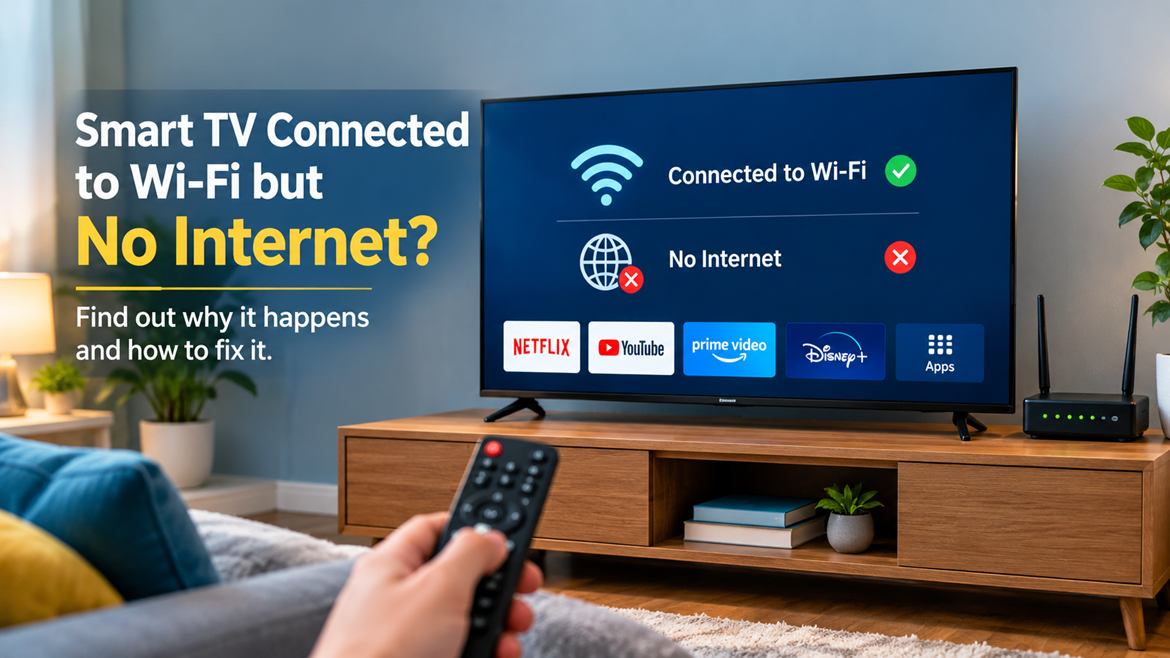
Seeing your Smart TV connected to Wi-Fi while Netflix, YouTube, browsers, or other online services refuse to load can be incredibly confusing. You may look at the network icon and think, “If the TV is connected to Wi-Fi, why can’t it access the internet?” The answer is that Wi-Fi and internet access are not exactly the same thing. Your television can successfully communicate with your wireless router while the router itself is unable to reach the wider internet. This is one of the most common reasons a Smart TV displays a reassuring Wi-Fi connection while still reporting “No Internet,” “Connected without internet,” or a similar message. Official troubleshooting guidance from Samsung, LG, and Sony also separates the connection between the TV and router from the connection between the router and the internet.
The good news is that this problem usually does not mean your television is broken. A temporary router problem, weak wireless signal, incorrect DNS configuration, outdated TV software, network congestion, or an issue with your internet provider can all produce the same frustrating symptom. Before changing complicated settings, you should identify exactly where the connection is failing. Think of your home network as a road: the TV is your car, the Wi-Fi router is the local road, and the internet is the highway beyond it. Your car can reach the road perfectly while the highway entrance is blocked. The steps below will help you find that blockage and get your Smart TV back online.
What “Connected to Wi-Fi but No Internet” Actually Means
When your Smart TV says it is connected to Wi-Fi, it generally means the television has successfully established a wireless connection with your router or access point. That is only the first part of the journey. Your router must then establish a working connection with your internet service provider, receive usable network information, resolve website and service addresses, and route traffic to the destination. If any part of that chain fails, your TV can remain connected to Wi-Fi while internet-based features stop working.
This distinction explains why the Wi-Fi symbol can look completely normal even when streaming applications are unavailable. LG’s current troubleshooting guidance specifically explains that a TV can show a Wi-Fi connection without having active internet access, and recommends testing another device on the same network to determine whether the problem is with the TV or the network. Sony similarly distinguishes between a TV connected to a Wi-Fi router and a TV that actually has internet access.
Wi-Fi Connection vs. Internet Connection
Imagine your TV is connected to your home router just as your computer might connect to a local network. The connection between those two devices can work perfectly even if the router has temporarily lost its connection to your ISP. In that situation, your TV has a Wi-Fi connection, but there is no usable path to online services. This is why the first troubleshooting question should not be “Is Wi-Fi connected?” but rather “Does this Wi-Fi network actually have internet access?”
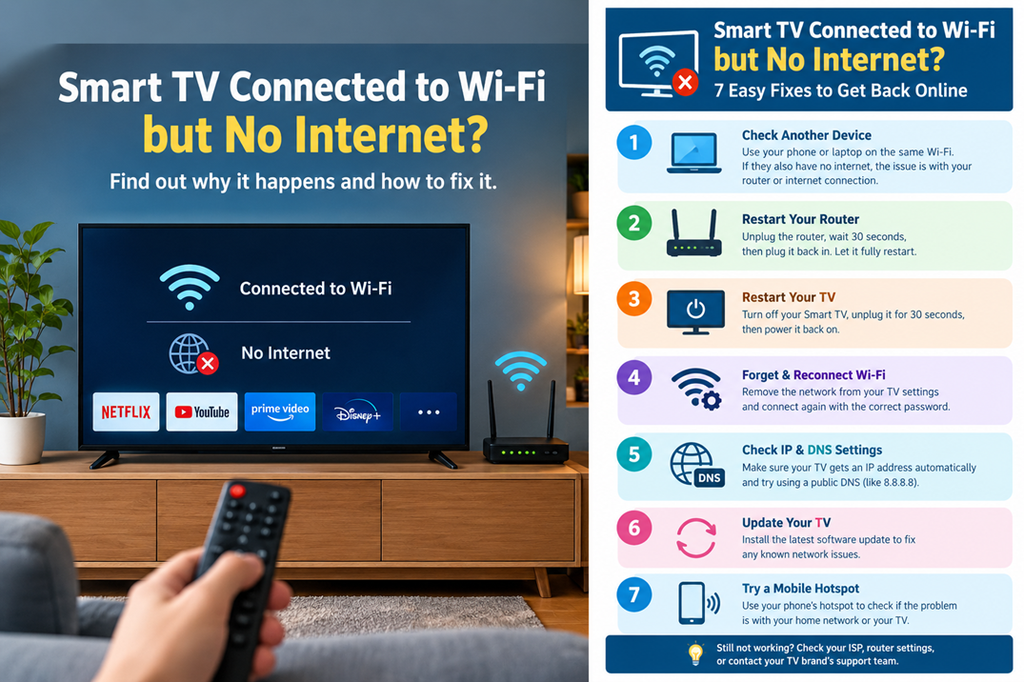
Take your smartphone or laptop and connect it to the same Wi-Fi network. Open a website or another online service. If your phone and laptop also fail to reach the internet, the television is probably not the primary problem. The router, modem, ISP connection, or DNS service may be responsible. Samsung recommends checking another device on the same router as part of its troubleshooting process, while LG gives the same basic diagnostic approach.
Why Your Smart TV Has Wi-Fi but No Internet
There isn’t one universal cause. A Smart TV’s internet connection depends on several components working together, so a failure in any one of them can produce the same message. The most common causes include a temporary router failure, ISP outage, poor Wi-Fi signal, incorrect IP configuration, DNS problems, outdated software, network congestion, or a compatibility problem between the TV and router.
Understanding the likely cause before changing settings can save you a lot of time. For example, if every device in your home has suddenly lost internet access, changing DNS settings on the TV probably will not solve the underlying problem. On the other hand, if your phone and laptop work normally while only the television reports “No Internet,” the TV’s network configuration becomes much more suspicious. This simple comparison is one of the most useful troubleshooting techniques because it quickly narrows the problem.
Router or ISP Problems
Your router is the first thing to investigate when multiple devices cannot access the internet. Routers can occasionally become unstable after running continuously for long periods, receiving configuration changes, experiencing overheating, or encountering temporary communication problems with the modem or ISP. An ISP outage can create exactly the same symptom because your local Wi-Fi network may continue broadcasting even though the internet connection beyond the router has disappeared.
Try opening several websites on your phone while connected to the same Wi-Fi. If nothing loads, restart the modem and router. Samsung recommends disconnecting the router’s power, waiting, and reconnecting it; its newer Smart Hub troubleshooting guidance also recommends turning the router off and back on when wireless internet problems occur.
If your phone works perfectly but your TV does not, avoid assuming that your ISP is responsible. In that situation, the television may have a stale network configuration or another local connection problem. You can then focus on reconnecting the TV, resetting its network settings, or checking its IP and DNS configuration.
Weak Wi-Fi Signal
A Smart TV located far away from the router may technically connect to Wi-Fi but still struggle to maintain a reliable internet connection. Walls, floors, furniture, appliances, and other wireless networks can weaken or interfere with the signal. Streaming video makes this problem especially noticeable because video services require a sustained flow of data rather than an occasional small request.
If the TV is in another room, try temporarily moving the router closer or connecting the TV using Ethernet if possible. LG recommends improving router placement and considering another Wi-Fi band when connection stability is poor. Sony likewise identifies weak signal strength as a possible reason for intermittent internet problems.
A useful test is to connect the TV to a mobile hot spot for a few minutes. If the TV immediately accesses online services through the hot spot, your television’s Wi-Fi hardware is probably functioning, and the issue is more likely related to your home router, network configuration, or ISP.
Incorrect Network or DNS Settings
Network settings can also cause the TV to connect locally while failing to communicate correctly with internet services. Your TV normally receives information such as an IP address, gateway, and DNS server from the router. If those settings become incorrect or stale, the TV may show a Wi-Fi connection but fail when it tries to reach online services.
DNS is particularly important because it helps translate domain names into the network addresses computers use to locate online services. Samsung specifically includes checking DNS settings among its troubleshooting steps when a TV is connected to the local network but cannot access the internet.
If you have manually entered IP or DNS values in the past, return them to automatic settings first. Manually changing advanced network settings without understanding them can create additional problems, so automatic configuration is usually the best starting point for a typical home network.
How to Fix a Smart TV Connected to Wi-Fi but Without Internet
Start with the simplest solutions before moving into advanced settings. You do not need to reset your television immediately, and you certainly should not change several network settings at once. Troubleshooting works best when you make one change, test the connection, and then move to the next step if necessary.
Check the Internet on Another Device
This should be your first test because it can tell you whether the problem is bigger than the TV.
Connect your phone or laptop to exactly the same Wi-Fi network. Then open a few websites or online services. If those devices also have no internet, restart the router and modem and check whether your ISP is experiencing a service problem. If everything else works normally, continue troubleshooting the television.
This simple test can prevent unnecessary changes to the TV. LG’s 2026 support guidance recommends checking whether other devices can connect to the same network; if none can connect, the router or ISP is more likely to be responsible, while a problem affecting only the TV points toward TV-side network settings or service.
Restart Your Router and Smart TV
A complete restart sounds almost too simple, but it is one of the most effective first steps. Temporary networking errors can remain in memory until a device is restarted, and a power cycle can force the router and TV to establish a fresh connection.
Turn off the TV. Unplug the router or modem-router combination from power, wait for a short period, and reconnect it. Give the router enough time to fully restart and restore its internet connection before turning the TV back on. Then check the TV’s network status again.
Sony specifically recommends restarting or power-resetting the TV and modem/router for intermittent Wi-Fi problems, while Samsung also recommends restarting network equipment during troubleshooting.
Forget and Reconnect to Wi-Fi
If your other devices have internet access but the TV still does not, forget the saved Wi-Fi network and connect again. This forces the TV to create a new wireless connection instead of relying on potentially outdated saved network information.
Open your TV’s Network or Network & Internet settings, select your current Wi-Fi network, choose the option to forget, remove, or disconnect it, and then search for available networks again. Select your home network and carefully enter the password. Pay attention to uppercase and lowercase characters because a single incorrect character can prevent proper authentication.
Samsung’s current connection instructions provide a network-management option for refreshing or managing saved networks, while LG also recommends checking and re-entering the correct Wi-Fi password when troubleshooting connectivity.
Check IP and DNS Settings
If reconnecting to Wi-Fi does not solve the problem, examine the TV’s IP settings. For most home networks, Automatic configuration is the safest choice unless you deliberately use a custom network setup.
Look for a menu similar to Settings → Network → Network Status → IP Settings. The exact names vary by manufacturer and model. Samsung’s support documentation specifically points users toward IP settings and DNS configuration when diagnosing internet connectivity.
If DNS is configured manually and you are unsure why, switching back to automatic DNS can help. If the TV continues to report no internet while every other device works, you can then investigate whether a different DNS configuration is appropriate for your network.
Additional Fixes That Often Work
If restarting, reconnecting, and checking the network settings have not fixed the problem, there are still several useful tests. At this stage, the goal is to determine whether the problem is caused by software, Wi-Fi compatibility, or the home network itself. Avoid immediately performing a factory reset because that removes personalized settings and may not address the underlying network issue.
Update Your TV Software
Smart TV manufacturers periodically release firmware and software updates that can include bug fixes, compatibility improvements, security changes, and application updates. An outdated television may occasionally experience networking or application problems that have already been addressed in newer software.
Check your television’s Settings → Support → Software Update or a similarly named menu. Samsung recommends checking for software updates during internet troubleshooting, and Sony also recommends keeping TV software current when dealing with Wi-Fi problems.
If the TV cannot access the internet at all, you may need to use an alternative update method supported by your manufacturer. The exact process varies by brand and model, so use the manufacturer’s instructions rather than downloading random firmware from third-party websites.
Test a Mobile Hot spot
A mobile hot spot is one of the best diagnostic tools when you have no idea whether the problem is the TV or your home network. Enable a hot spot on your smartphone and connect the television to it temporarily. You do not need to stream an entire movie; simply check whether the TV can open an online service or complete its network test.
If the TV works through the hot spot but not your home Wi-Fi, that strongly suggests the television’s wireless connection is capable of working and that something about your home network is causing the problem. The router, DNS configuration, Wi-Fi band, security settings, or ISP connection could be involved.
If the TV cannot access the internet through either your home Wi-Fi or a known-working hot spot, the television’s network settings or hardware deserve closer attention.
When Only Netflix, YouTube, or One App Does Not Work
Sometimes the TV actually has working internet, but one application refuses to load. This is an important distinction because resetting the entire network may be unnecessary. If YouTube works, the browser works, and another streaming application works, but Netflix does not, the problem may be specific to Netflix rather than your Wi-Fi.
Start by closing and reopening the affected application. Check for an available app update, restart the TV, and test another application. If multiple apps suddenly stop working, return to network troubleshooting instead.
LG’s troubleshooting guidance makes the same distinction: if only one application is affected while other services work, investigate the individual application rather than assuming the entire internet connection has failed.
This distinction is especially useful because Smart TVs depend on several layers of software. Your Wi-Fi can be working, your internet can be working, and the TV operating system can be working while an individual service is temporarily unavailable.
Samsung, LG, Sony, and Android TV Troubleshooting
The basic troubleshooting process is similar across Smart TV brands, but menu names differ. Samsung provides a Network Status diagnostic that shows where the connection is failing and also offers a Smart Hub Connection Test on supported models.
On Samsung TVs, look under Settings → All Settings → Connection → Network and locate the available network-status or diagnostic options. On supported newer models, Samsung’s Smart Hub Connection Test can check network connectivity and signal-related information.
LG TVs similarly provide network troubleshooting options, while LG’s support documentation recommends checking other devices, router status, Wi-Fi range, network settings, and available software updates.
Sony Android TV and Google TV models provide network diagnostics that can distinguish between a wireless connection problem, local network access, and internet access. Sony documentation explicitly describes a result where the TV is connected to the local wireless network but not to the internet. Because menu names change between model years, do not worry if your TV does not use the exact wording shown above. Search the settings for terms such as Network, Network Status, Network Diagnosis, Internet Connection, IP Settings, or Connection Test.
When Should You Contact Your ISP or TV Manufacturer?
If multiple devices connected to the same Wi-Fi network cannot access the internet, contact your ISP after restarting your networking equipment and checking for a local outage. There is little value in repeatedly changing TV settings when the actual internet connection entering your home is unavailable.
If every other device works but the television consistently fails, the issue is more likely to be specific to the TV or its connection to your router. At that point, try reconnecting the network, checking software updates, testing another Wi-Fi network, and running the TV’s built-in network diagnostic.
A factory reset should generally be considered a last resort, not the first solution. Samsung includes factory reset among its later troubleshooting options when other network fixes have failed.
If the TV cannot connect to multiple known-working networks, repeatedly loses its Wi-Fi capability, or cannot detect wireless networks at all, professional support may be appropriate. Hardware problems involving the TV’s wireless networking components are possible, particularly when software and network troubleshooting have already been exhausted.
Conclusion
If your Smart TV is connected to Wi-Fi but has no internet, don’t panic and don’t immediately assume that the television is damaged. The most important thing to understand is that connecting to Wi-Fi only establishes communication between your TV and router; it does not guarantee that the router has a working internet connection. Start by testing another device on the same Wi-Fi network, because that single test can tell you whether the problem is likely with your home network or the television.
If other devices also have no internet, restart your modem and router and investigate a possible ISP problem. If your other devices work normally, restart the TV, forget and reconnect to Wi-Fi, check IP and DNS settings, update the TV software, and test the television using a mobile hot spot. Manufacturer guidance from Samsung, LG, and Sony follows this same general troubleshooting logic: identify where the connection fails before changing advanced settings.
In most cases, the problem is fixable without replacing the TV. Work through the solutions one at a time, and you will usually be able to identify whether the culprit is your router, ISP, wireless signal, network configuration, TV software, or a particular streaming application.
FAQs
1. Why does my Smart TV say connected to Wi-Fi but no internet?
Your TV may be connected successfully to your router while the router has lost its internet connection. It can also happen because of incorrect DNS or IP settings, weak Wi-Fi, software problems, or a temporary network error. Test another device on the same Wi-Fi first to determine whether the problem affects the whole network.
2. Should I restart my router or Smart TV first?
You can restart both, but restarting the router and allowing it to fully reconnect to the internet is a good first step. Then restart the TV and check its network status again. Samsung and Sony both recommend power cycling network equipment as part of troubleshooting.
3. Why does Netflix work on my phone but not my Smart TV?
Your phone and TV may have different network configurations, software versions, or app versions. If other TV applications work, the problem may be specific to Netflix rather than your internet connection. Restart the app, check for updates, restart the TV, and test another streaming application.
4. Can changing DNS fix a Smart TV with no internet?
It can help in some cases, particularly when the TV is connected to the local network but has difficulty resolving online services. However, DNS should not be the first thing you change. First confirm that your router and ISP are providing internet access, then check the TV’s IP and DNS settings if necessary.
5. How do I know if my Smart TV’s Wi-Fi hardware is faulty?
Try connecting the TV to another known-working network, such as a mobile hot spot. If it repeatedly fails to connect to multiple working networks while other devices connect normally, the TV’s network configuration or hardware may need attention. If the problem persists after software and network troubleshooting, contact the TV manufacturer’s support service.
